# Connect Claude, ChatGPT and other AI agents
> Connect Claude, Claude Code, ChatGPT, OpenClaw or any MCP client to your books — sign in, approve access, then ask for reports and draft documents.
Canonical: https://docs.getonebooks.com/ai/mcp/
Language: en
Documentation index: https://docs.getonebooks.com/llms.txt
OneBooks runs an **MCP server** (Model Context Protocol), so the AI agents you already use can work on your books: pull reports, look up records, search this documentation and prepare documents that you confirm. They get exactly the tools the in-app assistant has, under the same rule — **nothing is written until a human approves it**.
> **The server address**
> `https://api.getonebooks.com/mcp` — Streamable HTTP with OAuth sign-in. There are no API keys to copy.
## Pick your client
Cursor, VS Code, the MCP Inspector and custom agents connect the same way — see the section on other MCP clients below.
## What you need
- A OneBooks account. The agent inherits your role: a **viewer** gets read-only tools, a **member** can propose documents, and only an **owner** or **admin** can propose payments.
- Claude and ChatGPT reach OneBooks from their own servers; Claude Code and OpenClaw connect from your computer. Either way the client signs in through the consent screen below — never with a pasted key.
## Approve access
The first time a client connects, OneBooks opens its sign-in and consent screen.
1. Sign in with your OneBooks email and password if you are not signed in already.
2. Check the business named on the screen — access is granted for your **active business** only.
3. Review what the app will be able to do, then select **Approve** (or **Deny**).
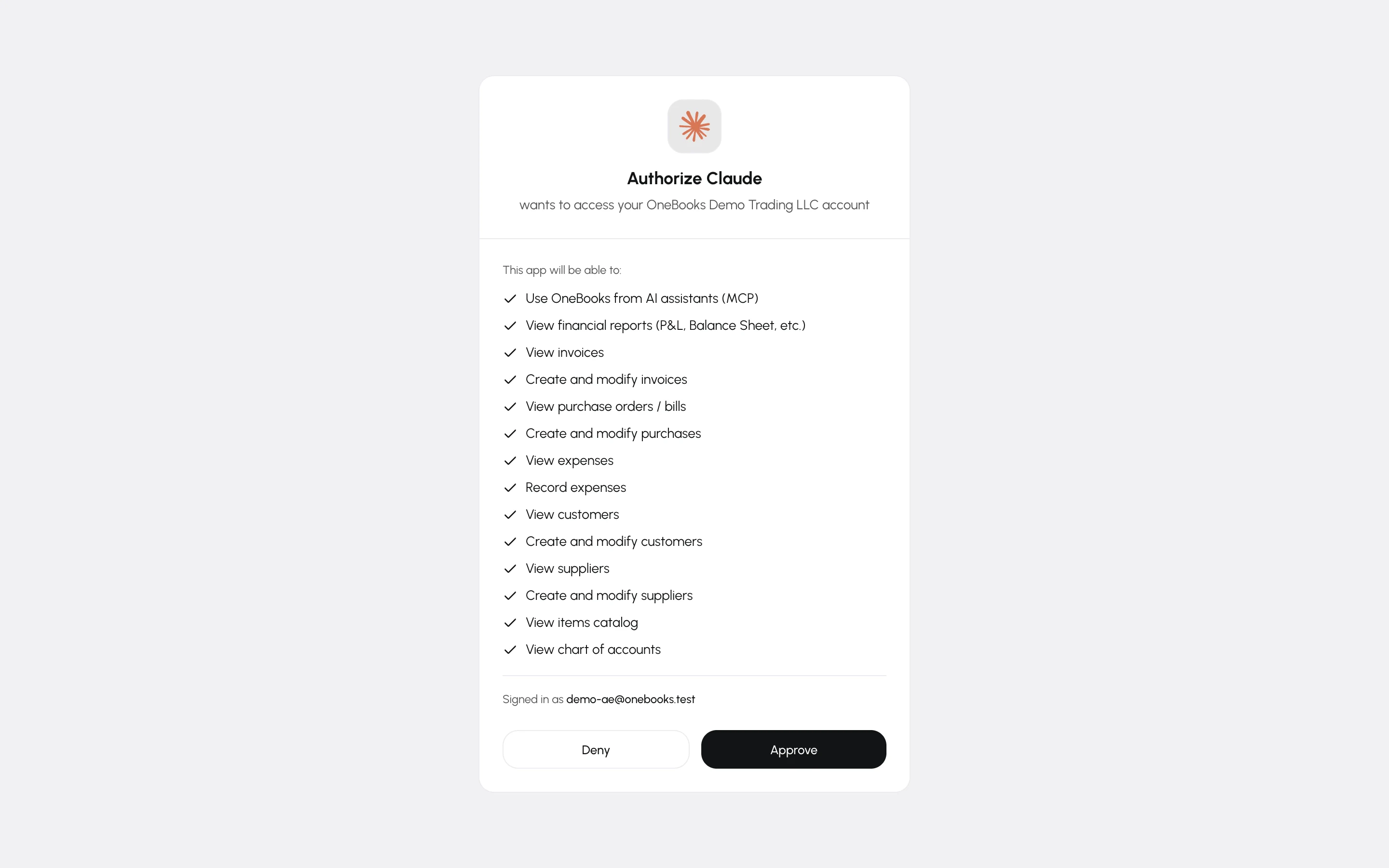
Switching your active business in OneBooks ends the connection; connect again and consent for the new business.
## Claude
Custom connectors are available on every Claude plan (the free plan allows one). Claude connects to OneBooks from Anthropic's servers, so a connector added once works in the browser and in Claude Desktop alike.
1. Open **Customize → Connectors**. On Team and Enterprise plans an owner adds it under **Organization settings → Connectors → Add → Custom**; members then select **Connect**.
2. Select **Add custom connector**, name it OneBooks and enter `https://api.getonebooks.com/mcp`. Leave the advanced OAuth fields empty — Claude registers itself.
3. Select **Connect** and approve access on the OneBooks screen.
4. In a chat, open the **+** menu, choose **Connectors** and switch OneBooks on. Then ask: "What is my cash position?"
## Claude Code
Register the server once for all your projects, then sign in from the `/mcp` panel:
```bash
claude mcp add --transport http onebooks --scope user https://api.getonebooks.com/mcp
```
Inside Claude Code run `/mcp`, choose **onebooks** and finish the sign-in in the browser. `claude mcp list` shows the connection and `claude mcp remove onebooks` removes it. Claude Code identifies itself with a client metadata document, so there is nothing to register.
## ChatGPT
Custom MCP servers in ChatGPT need **Developer mode**, available on Plus, Pro, Business, Enterprise and Edu plans (a workspace admin may have to allow it first). Set it up once on the web; the connector belongs to your ChatGPT account.
1. Open **Settings → Apps** (named **Connectors** on some plans), then **Advanced settings**, and turn on **Developer mode**.
2. Select **Create**, name it OneBooks, enter `https://api.getonebooks.com/mcp`, choose **OAuth** as the authentication and confirm that you trust the provider.
3. Approve access on the OneBooks screen.
4. In a new chat select **+ → More → Developer mode**, enable OneBooks for that conversation, and ask away.
Without Developer mode, ChatGPT uses only two read-only tools — **search** and **fetch** — which find and quote your invoices, purchases, customers, suppliers and items, for example in deep research. Reports and drafting need Developer mode.
## OpenClaw
OpenClaw is an open-source personal agent that runs on your own machine and talks to you through your messaging apps.
1. Open **Settings → MCP**, select **Add server**, name it `onebooks`, choose the **Streamable HTTP** transport and enter `https://api.getonebooks.com/mcp`.
2. Set the server's authentication to OAuth (the configuration entry is shown below).
3. Run `openclaw mcp login onebooks`. The browser opens the OneBooks consent screen and OpenClaw stores the tokens; if the browser cannot reach OpenClaw's callback, use the `--code` command it prints.
4. `openclaw mcp status --verbose` confirms the connection.
In OpenClaw's configuration file the server entry reads:
```json5
{
mcp: {
servers: {
onebooks: {
url: "https://api.getonebooks.com/mcp",
transport: "streamable-http",
enabled: true,
auth: "oauth",
},
},
},
}
```
## Other MCP clients
Any client that supports **Streamable HTTP** and **OAuth 2.0 with PKCE** can connect — Cursor, VS Code, Windsurf, the MCP Inspector, custom agents. Where the client takes a configuration file, the entry is:
```json
{
"mcpServers": {
"onebooks": { "type": "http", "url": "https://api.getonebooks.com/mcp" }
}
}
```
The client discovers the sign-in server, registers itself (or presents its client metadata document) and opens the consent screen.
## What the agent can do
Exactly what the in-app assistant can: [reports and lookups](https://docs.getonebooks.com/ai/reports/), answers from this documentation, and [proposals](https://docs.getonebooks.com/ai/drafting/) for invoices, purchases, expenses, payments, customers and suppliers.
Writing works in two steps here too. The agent asks OneBooks to prepare the document; OneBooks stores a **proposal** and returns a preview, which the agent shows you. Only after you approve that exact preview does the agent confirm the proposal — never in the same turn, once only, and within 24 hours. Every proposal also appears in the in-app assistant, where you can confirm or cancel it yourself. There are no delete, void, edit or refund tools for any agent.
## Manage and revoke access
**Apps → Apps** with the **Apps** filter lists the AI clients connected to your business, each with its own name and mark, when it was authorised and when it was last used.
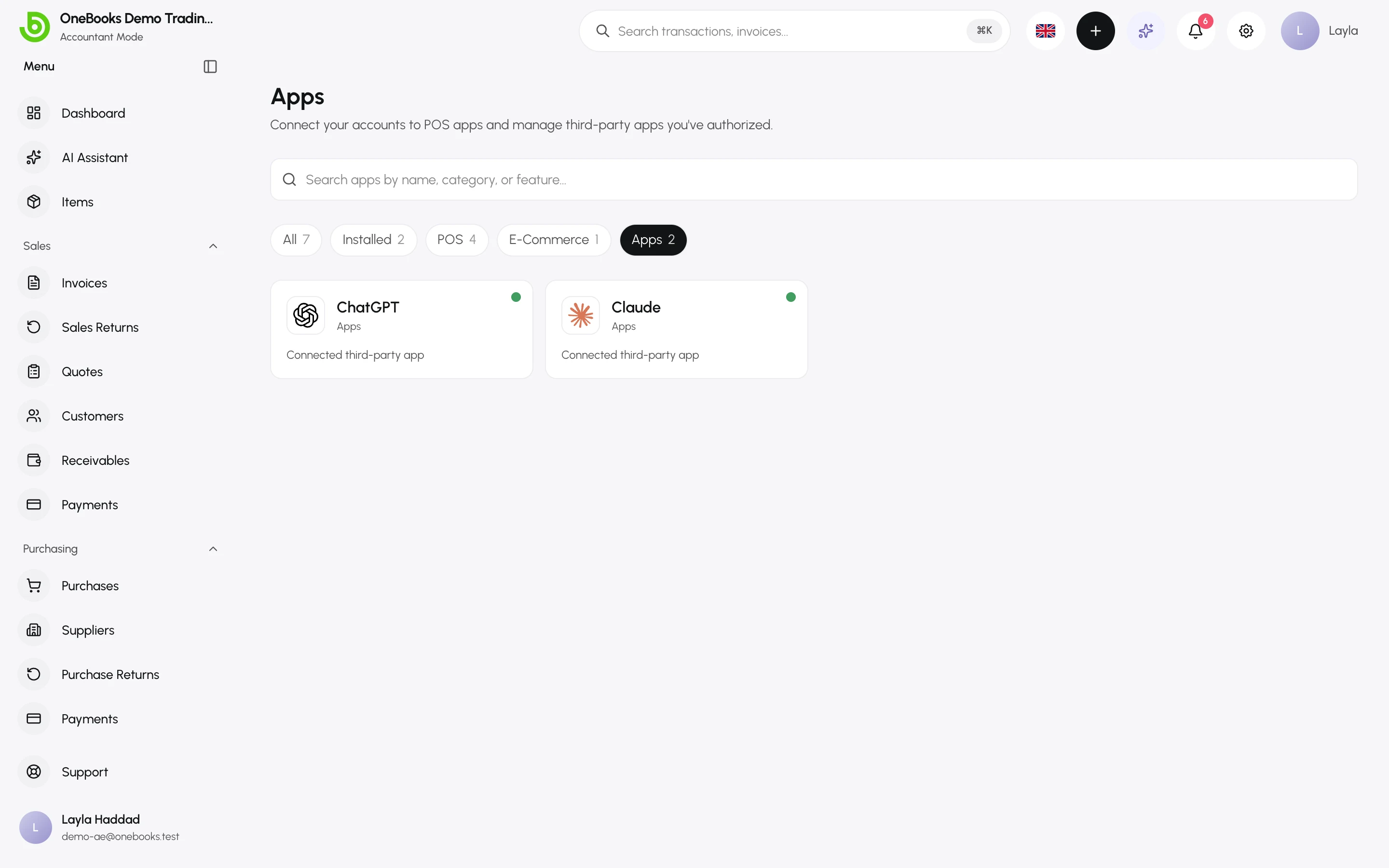
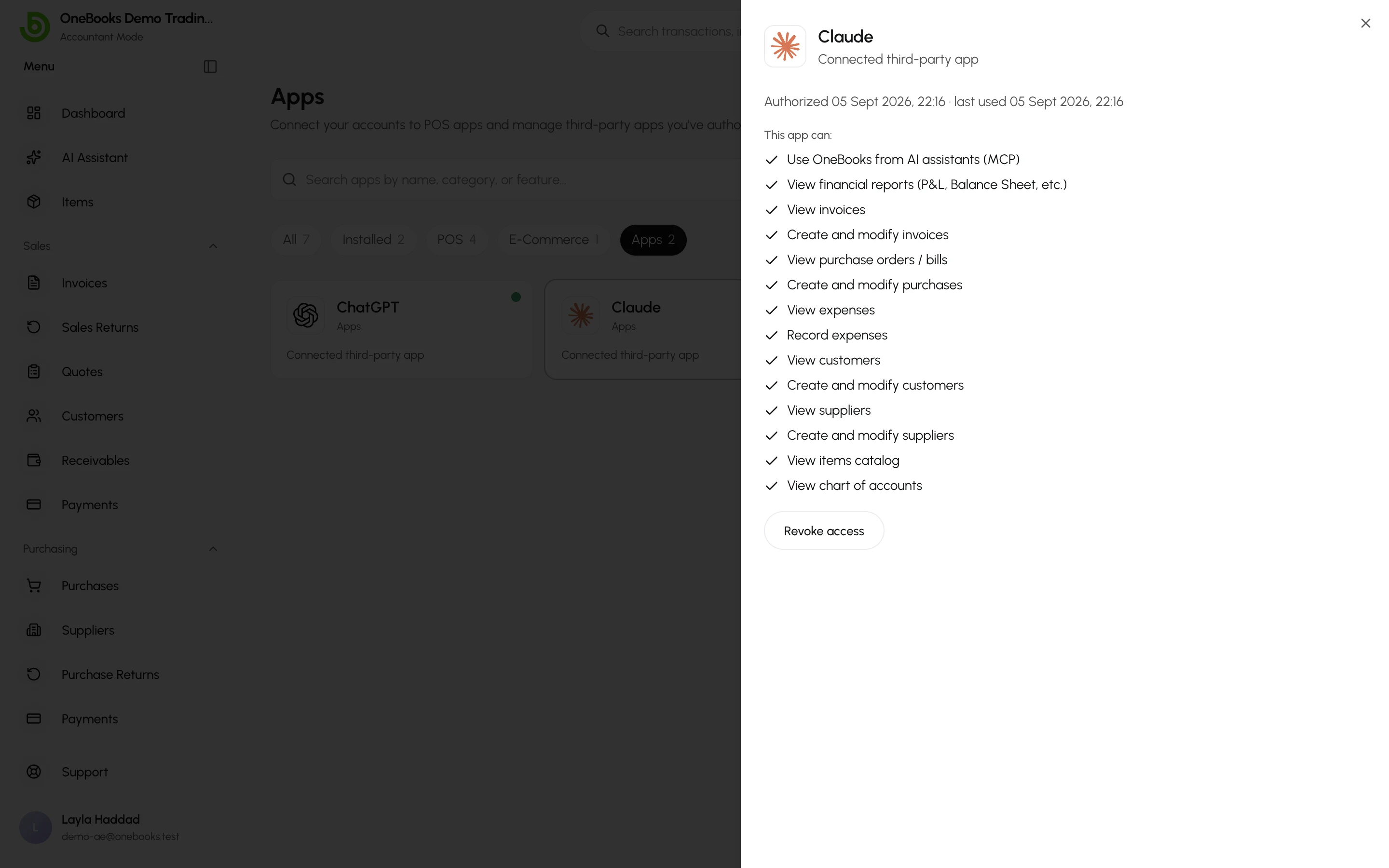
Select a card to see what the app can do and to **Revoke access**. Its tokens stop working immediately; nothing it already created is removed.
## Limits
120 requests per minute per address, a weekly call cap per business, and the shared weekly credit allowance. See [Credits and limits](https://docs.getonebooks.com/ai/credits/).
## Troubleshooting
- **The consent screen names the wrong business** — switch your active business in OneBooks first, then connect again.
- **The client stopped working after you switched business** — expected; connect again and consent for the new business.
- **Tools are missing** — a viewer gets read tools only, payments need an owner or admin, and ChatGPT needs Developer mode for anything beyond search and fetch.
- **The agent reports exhausted credits** — the allowance renews weekly; see [Credits and limits](https://docs.getonebooks.com/ai/credits/).
- **OpenClaw shows nothing after Approve** — the browser could not reach its local callback; run the `--code` command printed in the terminal.
## For developers
Building your own MCP client or integration? The developer documentation at **developer.getonebooks.com** covers OAuth, scopes, dynamic registration, client metadata documents and the API reference.
## Related
- [Safety, privacy and limits](https://docs.getonebooks.com/ai/safety/)
- [Connected apps and OAuth](https://docs.getonebooks.com/integrations/connected-apps/)