

Draft documents with proposals
Writing happens in two steps. The assistant proposes; you confirm. Until you press the button nothing is saved, and the assistant has no way to press it for you.
Ask for a document
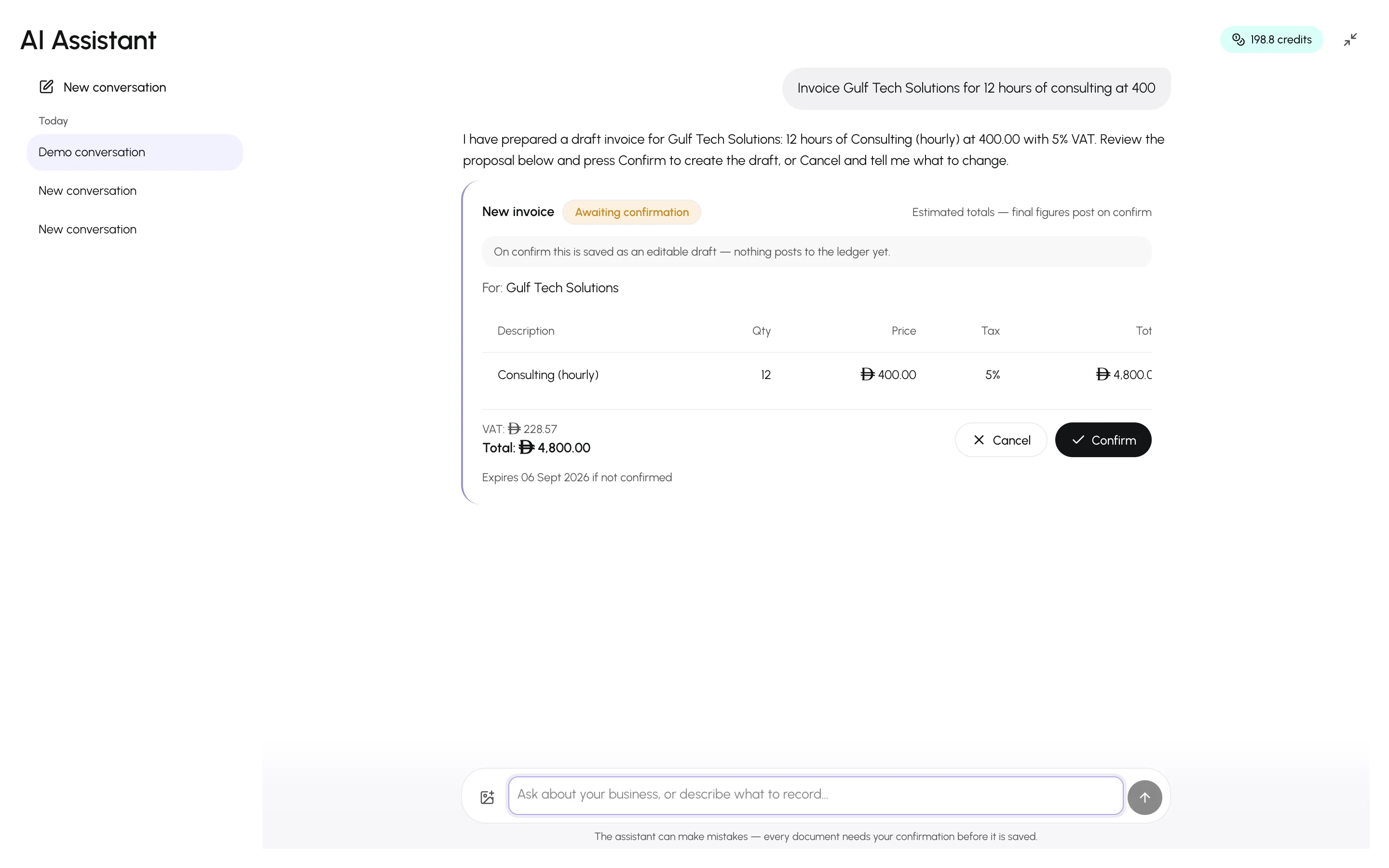
Section titled “Ask for a document”- Describe what you want: “Record an expense of 640 for DEWA electricity paid by bank transfer today”, or “Invoice Gulf Tech Solutions for 12 hours of consulting at 400”.
- The assistant looks up the customer, supplier, item or account you named. If it does not exist, it offers to create it first — also as a proposal.
- A proposal card appears with the parsed details and estimated totals.
Review and confirm
Section titled “Review and confirm”Check the party, lines, amounts, tax and date. Then:
- Confirm — the document is created. An invoice is saved as an editable draft unless you asked for it to be issued. A purchase is received and posted unless you asked for a draft. Quotes, and new credit and debit notes, are saved as drafts. Expenses, payments, contra transfers and journal entries post immediately, and so does sending a draft invoice, finalizing a draft purchase or posting a credit or debit note. The card says which before you confirm. An edit posts nothing: the card lists each field it changes with its current and new value — for a draft invoice or purchase, the lines before and after — and bank details are never touched.
- Cancel — nothing happens. Tell the assistant what to change and it proposes a corrected version.
Proposals expire if not confirmed, and confirming re-checks your permissions at that moment — a proposal you are no longer allowed to make cannot be confirmed.
What can be proposed
Section titled “What can be proposed”| Proposal | Result on confirm |
|---|---|
| New invoice | Draft invoice, or a sent invoice if you asked for it to be issued |
| New purchase | Received (posted) purchase, or a draft if you asked for one |
| Send invoice | The draft invoice you named is sent and posted |
| Finalize purchase | The draft purchase you named is received and posted |
| New expense | Posted expense |
| Payment | Posted customer payment |
| Payment allocation | Posted customer payment, split across the invoices you named |
| Supplier payment | Posted supplier payment, against a purchase or on the supplier’s account |
| New contra voucher | Posted transfer between two cash or bank accounts |
| New quote | Quote saved; nothing is posted |
| Invoice from quote | Draft invoice dated today, built from the quote’s lines; the quote is marked converted |
| Edit draft invoice | The draft invoice is updated — only the changes listed on the card |
| Edit draft purchase | The draft purchase is updated — only the changes listed on the card |
| New sales return | Draft sales return (credit note) against the invoice you named |
| Finalize sales return | The draft sales return is confirmed and posted as a credit note, reducing what the customer owes |
| New purchase return | Draft purchase return (debit note) against the purchase you named |
| Finalize purchase return | The draft purchase return is confirmed and posted as a debit note, reducing what you owe the supplier |
| Supplier payment allocation | Posted supplier payment, split across the purchases you named |
| New journal entry | Posted manual journal entry |
| New account | Account added to the chart of accounts |
| Edit account | The account’s name or description is updated |
| New item | Created catalog item |
| Edit item | The item is updated — only the fields listed on the card |
| New customer / New supplier | Created record |
| Edit customer | The customer’s details are updated — only the fields listed on the card |
| Edit supplier | The supplier’s details are updated — only the fields listed on the card |
| New bank statement | Draft bank statement with every line you entered, ready to match |
| Bank statement matches | The statement lines you named are matched to the transactions shown, or ignored |
| Journal entry from bank line | Posted journal entry for the statement line, matched to it |
| Reconcile bank statement | The statement is marked reconciled |
| New budget | Draft budget for the fiscal year, or the active primary budget if you asked for one, with amounts computed from last year, a revenue target or another budget; nothing is posted |
| Edit budget amounts | The budget’s amounts are updated — only the changes listed on the card; nothing is posted |
By default, only an owner or admin can propose customer payments, payment allocations, supplier payments and their allocations, contra vouchers, journal entries (including one from a bank line), new or edited accounts, and new budgets or changes to their amounts. Members can propose quotes, credit and debit notes, edits to draft invoices and purchases, item edits and bank statements, matches and reconciliations, and any team member who can manage customers or suppliers — every member, by default — can propose an edit to their details. A manual journal entry cannot use the receivables, payables, tax or equity control accounts, which change only through their documents. On a Saudi business, an invoice or credit note proposal also shows the ZATCA check — the same errors and warnings the form shows — before you confirm.
Anything else — voiding, deleting, refunds, reversals, unmatching a bank line, edits to posted documents or to any other record — is done in the app. A credit or debit note always needs the invoice or purchase it corrects.