

Users, roles and permissions
Settings → Users & Permissions (owners and admins) controls who can sign in to your business and what they may do. Every action in OneBooks — and every AI tool — checks the same permissions.
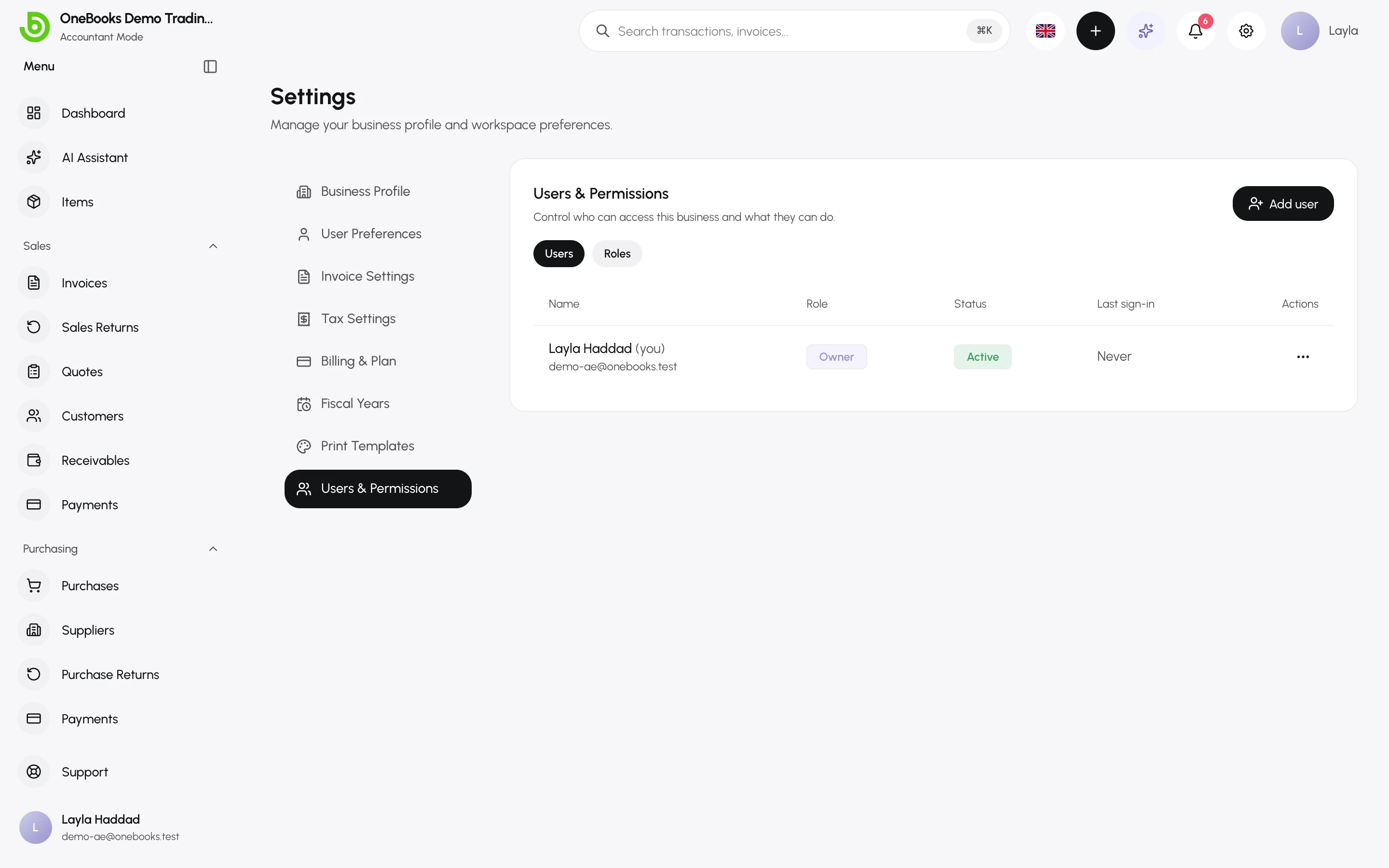
| Role | Can |
|---|---|
| Owner | Everything, including billing and managing users. One per business; cannot be removed. |
| Admin | Everything except owner-only settings such as billing. |
| Member | Day-to-day work: create customers, suppliers, items, invoices, quotes, purchases, returns, expenses and bank reconciliation. Cannot record payments, void, delete, write off, create or change budgets, change settings or manage users unless granted. |
| Viewer | Read-only: every list, document, report and budget, no changes. |
Add a user
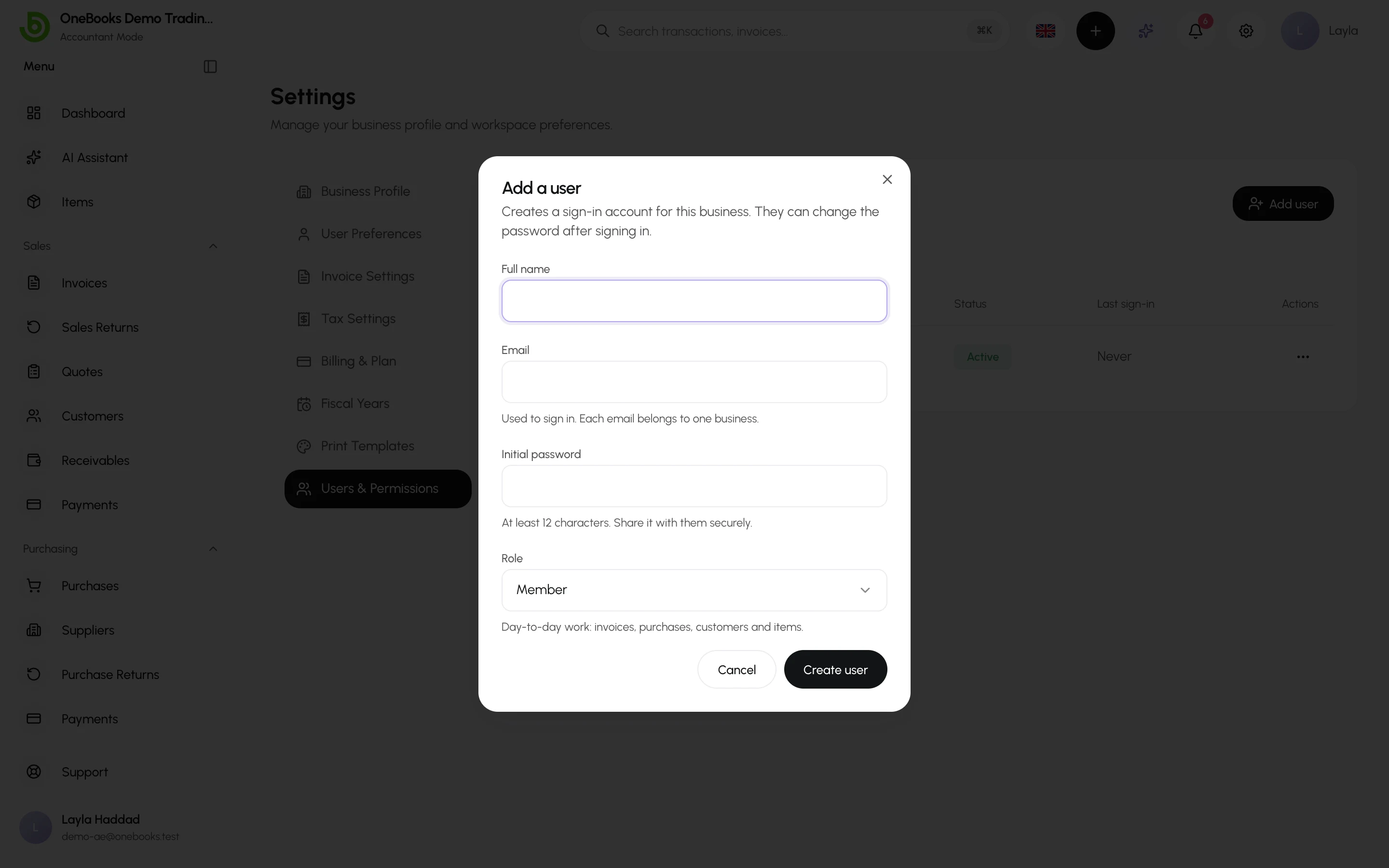
Section titled “Add a user”- Select Add user.
- Enter the person’s name, email, an initial password (at least 12 characters; they can change it) and pick a role.
- Select Save. Share the sign-in details with them.
Fine-tune permissions
Section titled “Fine-tune permissions”Open a user to grant or revoke individual permissions on top of their role — for example allow a member to record payments or void invoices. Nobody can grant a permission they do not hold themselves.
Suspend or remove
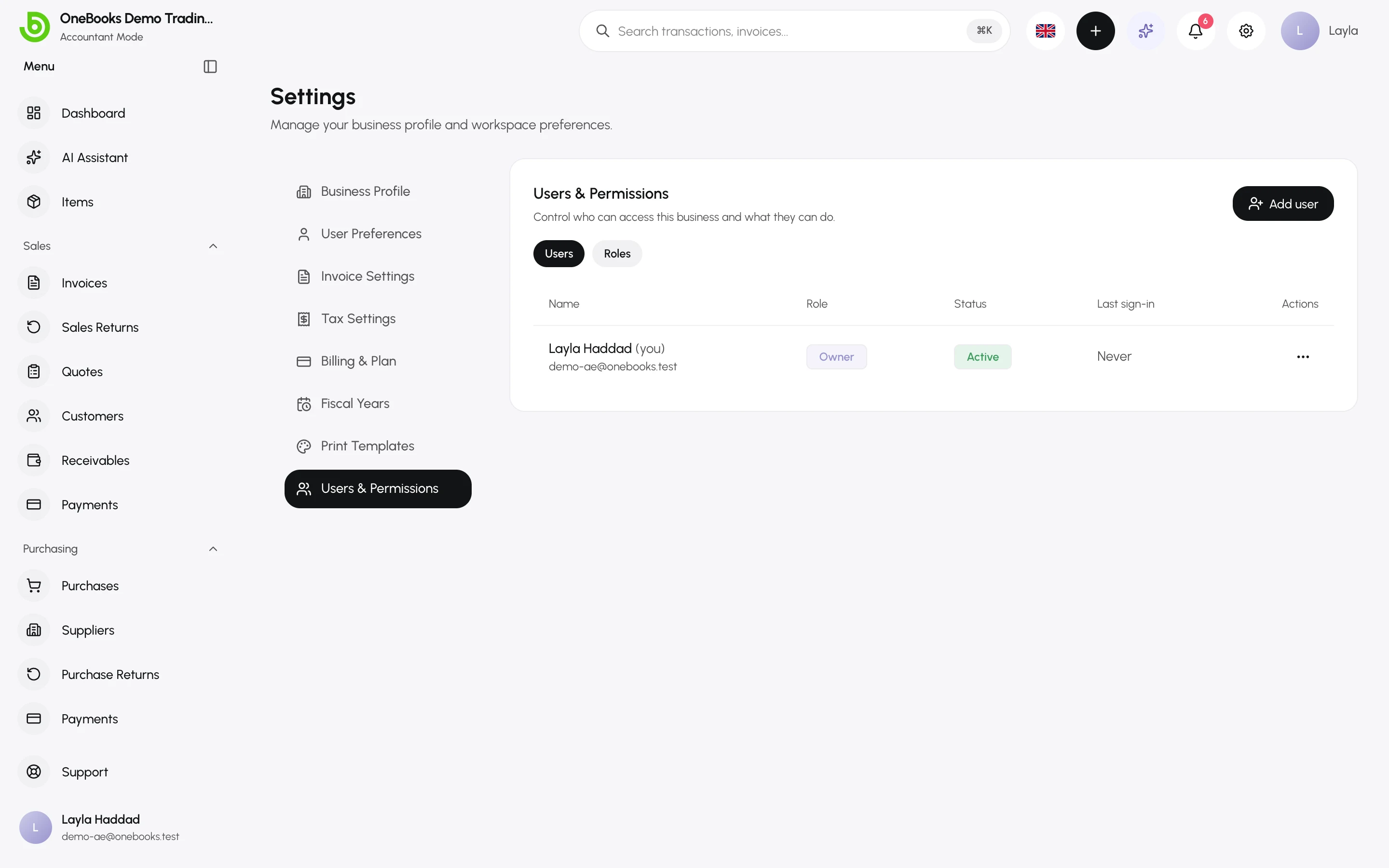
Section titled “Suspend or remove”Suspend blocks sign-in without deleting history; Delete removes the user from the business. Documents they created stay.
Where permissions apply
Section titled “Where permissions apply”- Every screen and action in the app.
- The AI assistant and connected agents: a viewer gets read-only answers; proposals are checked again when confirmed.
- Connected apps act with the permissions of the user who authorised them.
Permissions for apps
Section titled “Permissions for apps”The Integrations group of permissions decides who can work with apps from the App Marketplace:
| Permission | Allows | Held by default by |
|---|---|---|
integrations.read |
Seeing Apps → Installed apps and each app’s details, opening installed apps, and seeing their menus, cards and App data on your records. | Every role |
integrations.manage |
Installing and uninstalling apps, and writing, editing or deleting your business’s review of an app. It also covers connecting, setting up and disconnecting point-of-sale and e-commerce integrations. | Owners and admins |
To let a member manage apps, open the member’s Edit permissions and switch on integrations.manage under Integrations — or grant it to a whole role on the Roles tab. Using an installed app is a separate matter: the app acts with your role while you use it, so a viewer who opens one gets read-only results, and editing an app’s field on a record needs the permission that edits that record. See Find and install apps.