

Everything on this page lives under Settings, which you open from your user menu at the bottom of the sidebar. Only the owner and admins can change business settings; other roles can view them.
Company profile
Section titled “Company profile”Settings → Business Profile holds what prints on your documents and drives numbering.
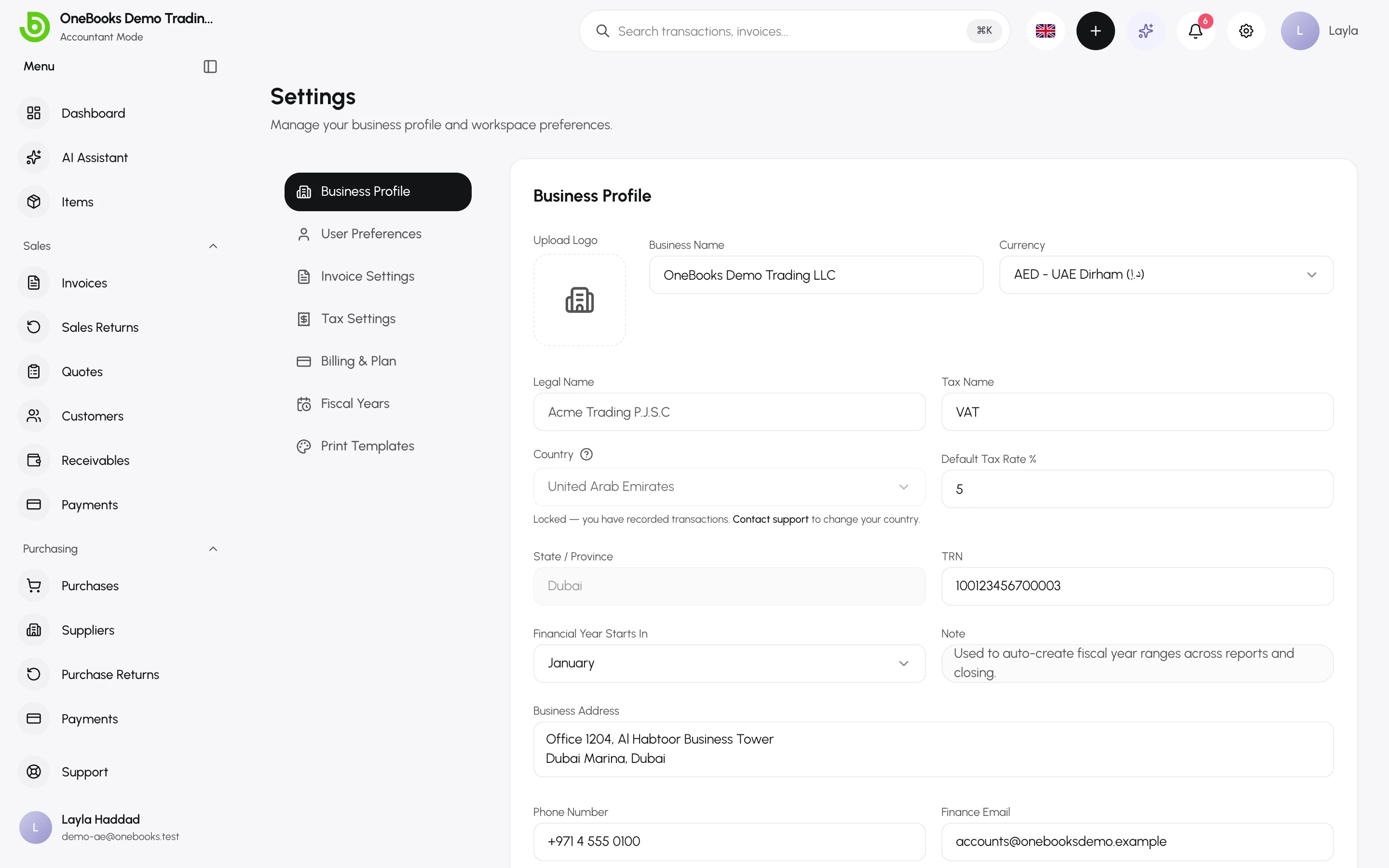
- Upload a logo — it appears on invoices, quotes and receipts.
- Enter the business name (what customers see) and, if different, the legal name.
- Check the tax name and tax ID (VAT number, TRN, GSTIN…). They print on every tax document.
- Set Financial year starts in — the month your fiscal year begins. Reports and year-end closing use it. See Fiscal years.
- Fill in the address, phone and email shown on documents.
- Set the default payment terms in days — new invoices get their due date from it.
- Select Save.
Tax settings
Section titled “Tax settings”Settings → Tax Settings decides how tax is calculated on every line you enter.
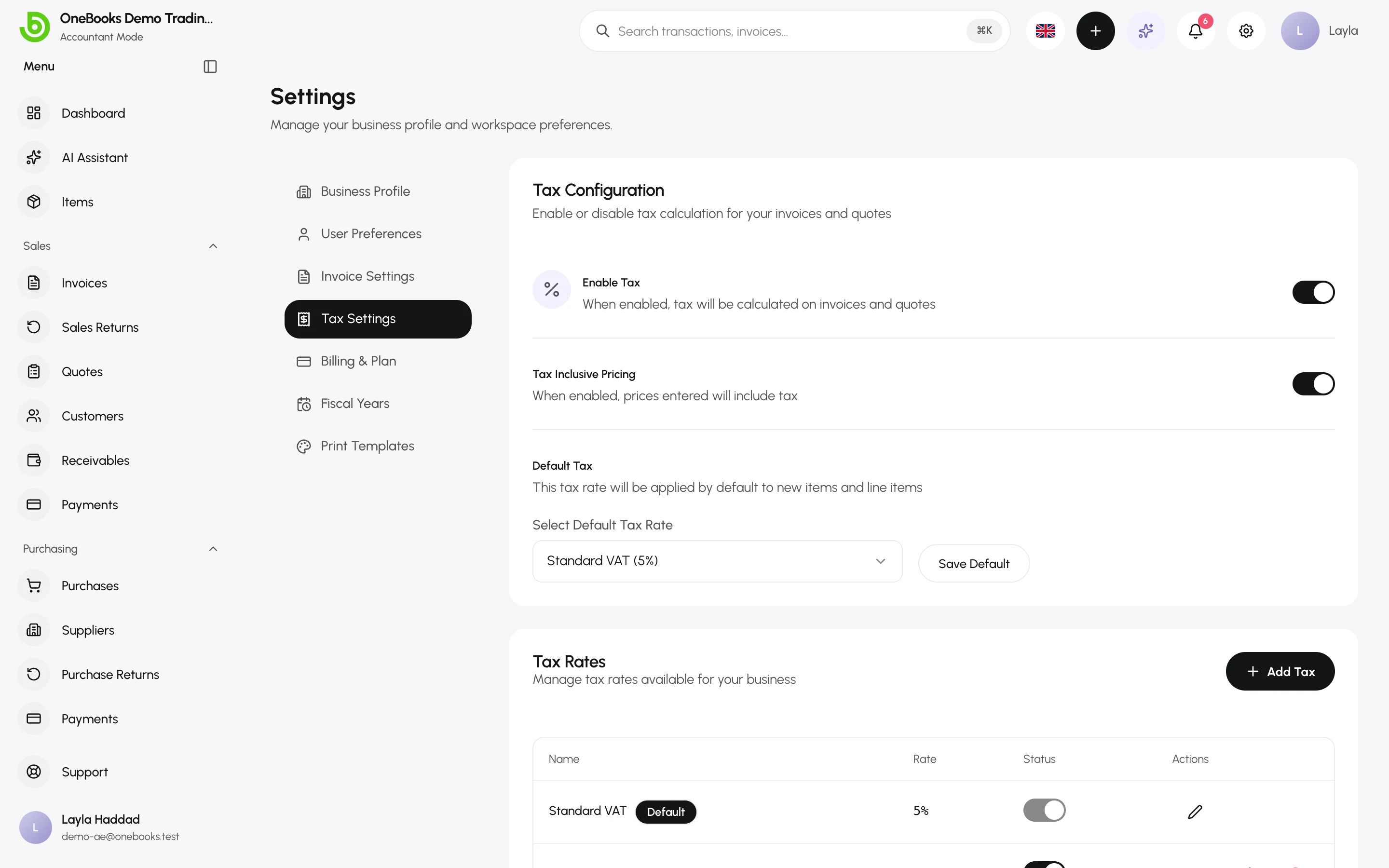
- Enable Tax — turn off only if your business is not tax-registered.
- Tax Inclusive Pricing — when on, the prices you type already include tax and OneBooks extracts it; when off, tax is added on top.
- Tax Rates — add the rates you use (standard, reduced, zero) and set the default applied to new items and lines.
Details: Tax settings.
Fiscal year
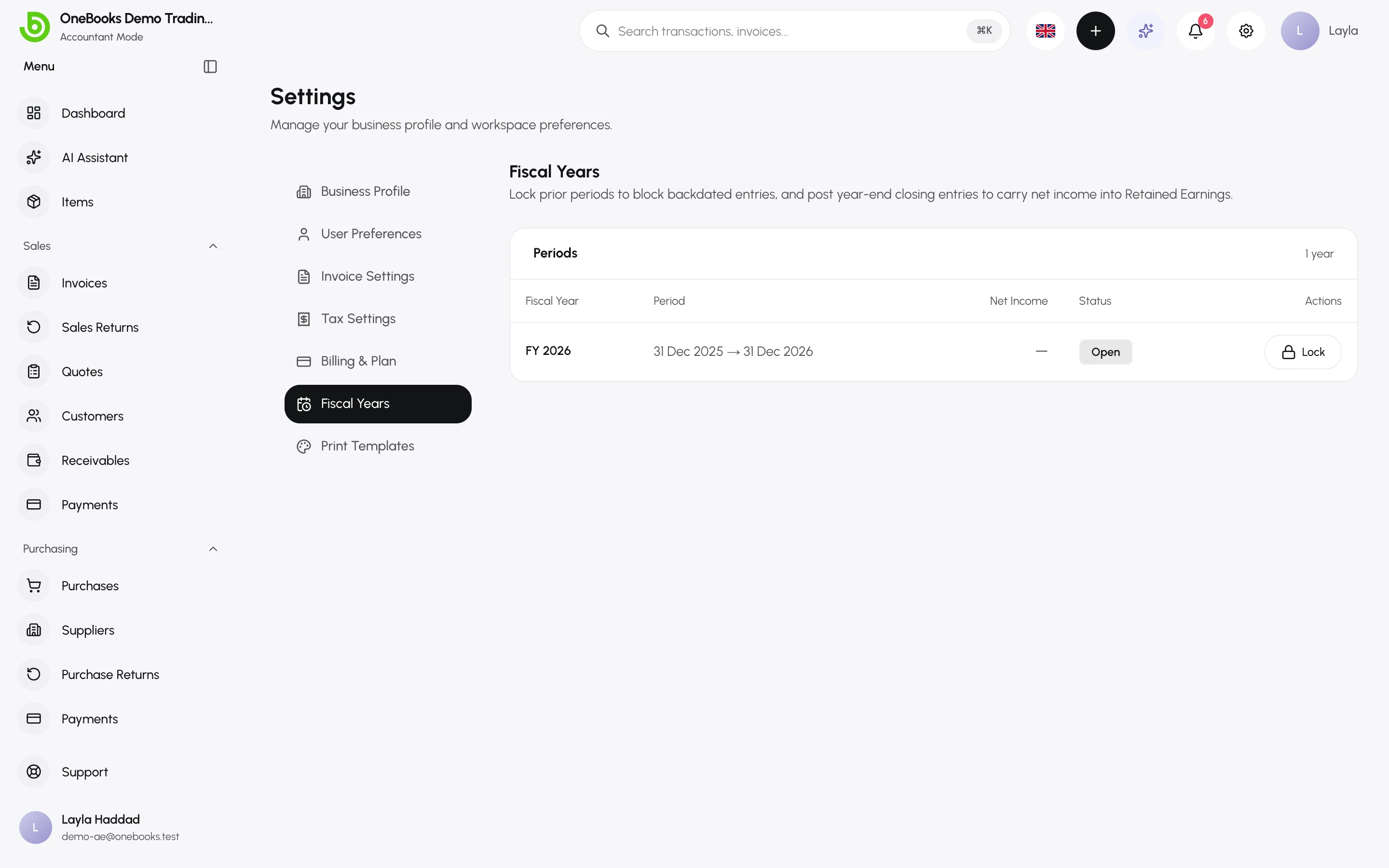
Section titled “Fiscal year”Settings → Fiscal Years lists your fiscal years with their status (Open, Locked, Closed). Nothing to do on day one — OneBooks creates the current year automatically — but this is where you will lock prior periods and run year-end closing later. See Fiscal years.
Preferences
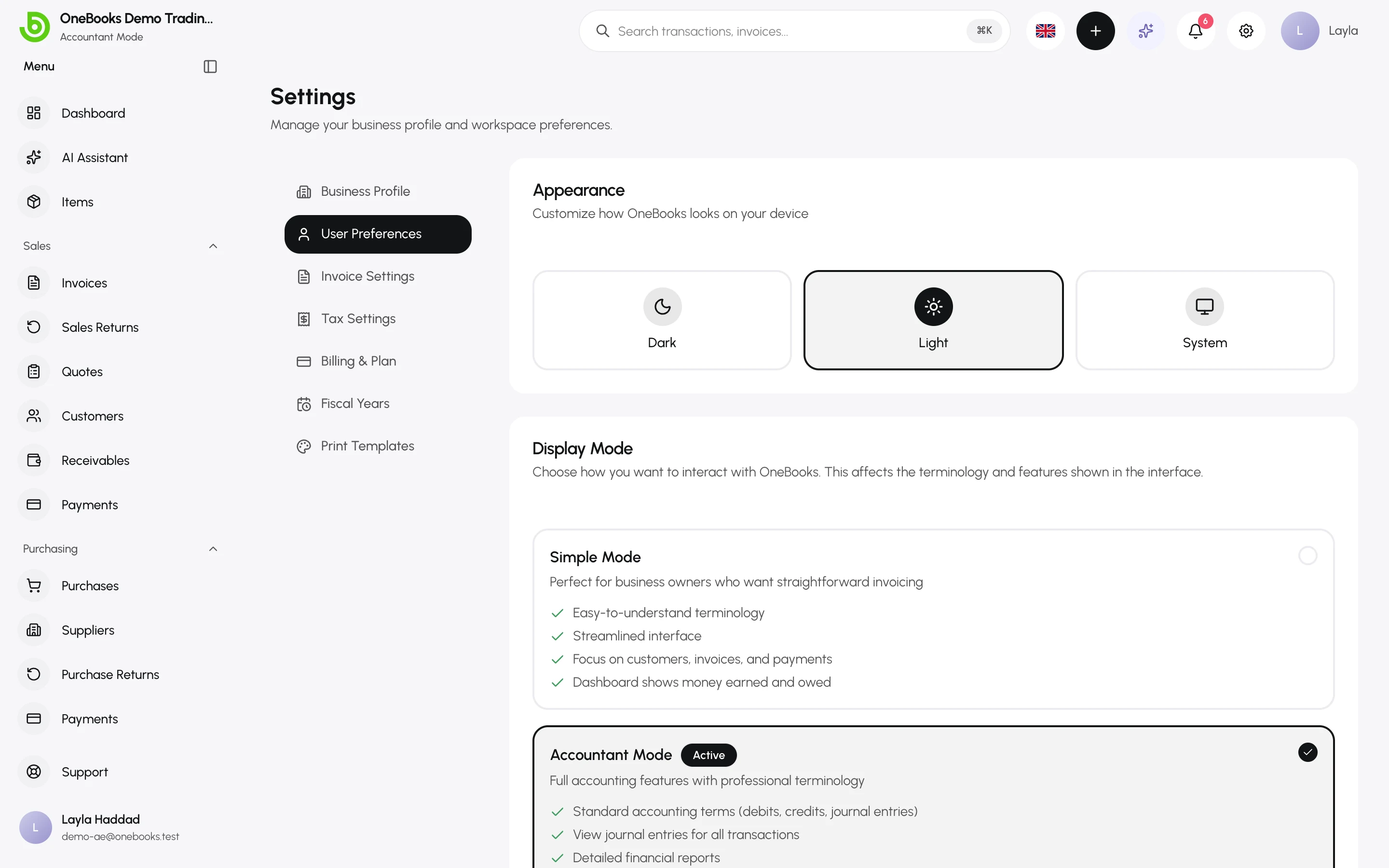
Section titled “Preferences”Settings → User Preferences is personal to each user: Display Mode (Simple or Accountant), Appearance (Light, Dark, System) and Language (English, Arabic, Spanish, French). See Simple mode vs Accountant mode and Preferences.
Recommended first-week checklist
Section titled “Recommended first-week checklist”- Add your items so invoices are consistent — Items catalog.
- Import customers and suppliers from a spreadsheet — Import and export.
- Enter opening balances if you are moving from another system — Opening balances.
- Invite your accountant with the Admin or Member role — Users and roles.
- Saudi Arabia: complete ZATCA onboarding before issuing tax invoices — Saudi Arabia.