

A supplier is anyone you buy from on credit. Every purchase, purchase return and supplier payment is linked to one supplier, and the supplier page shows the running balance you owe.
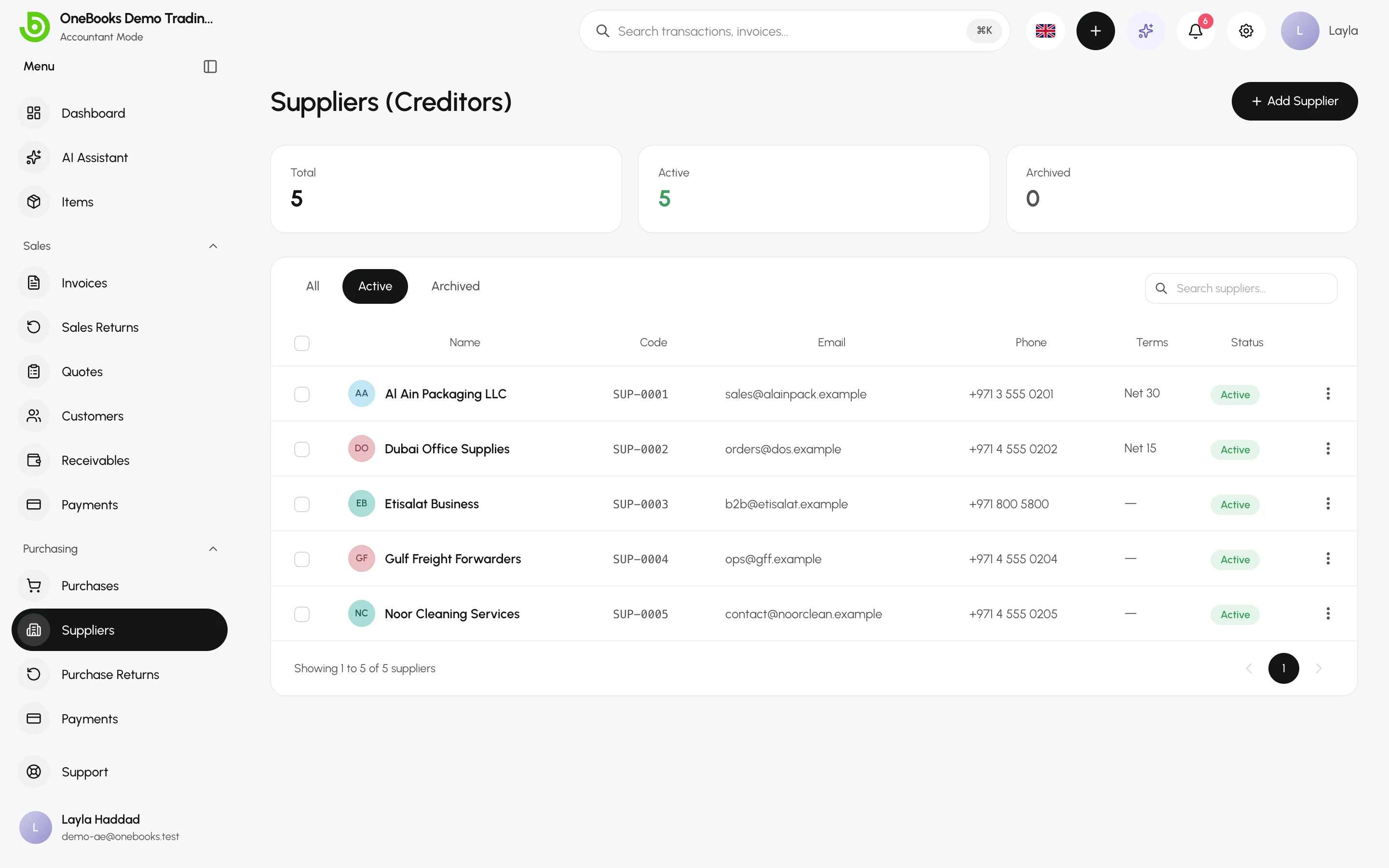
Add a supplier
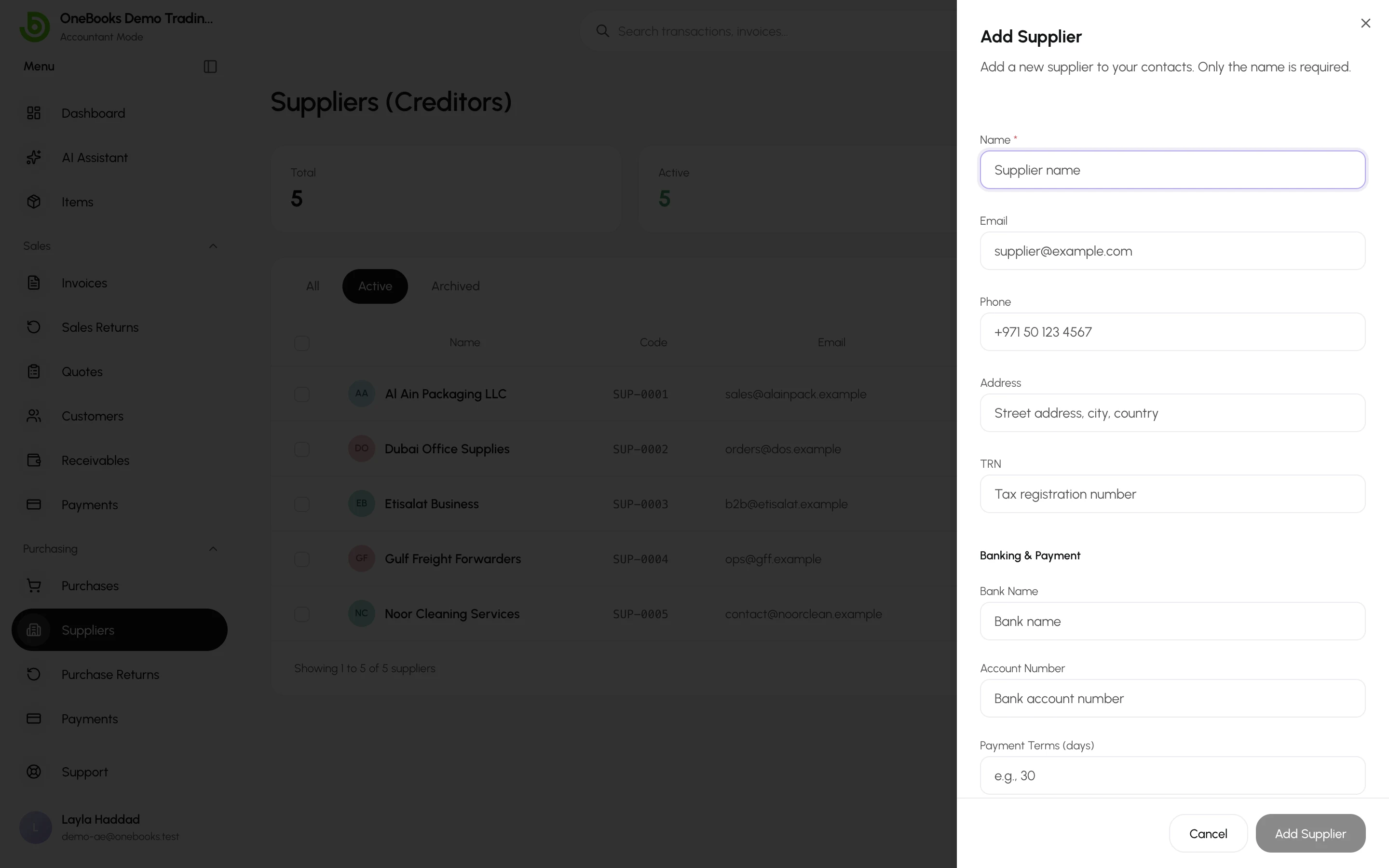
Section titled “Add a supplier”- Open Purchasing → Suppliers and select Add Supplier.
- Enter the name (required), and optionally email, phone and address.
- Add the supplier’s tax registration number so it prints on debit notes and is available for tax reports (India: the supplier’s GSTIN).
- Add bank name and bank account to keep payment details at hand, and payment terms (days) so new purchases get the right due date.
- Select Save.
The supplier page
Section titled “The supplier page”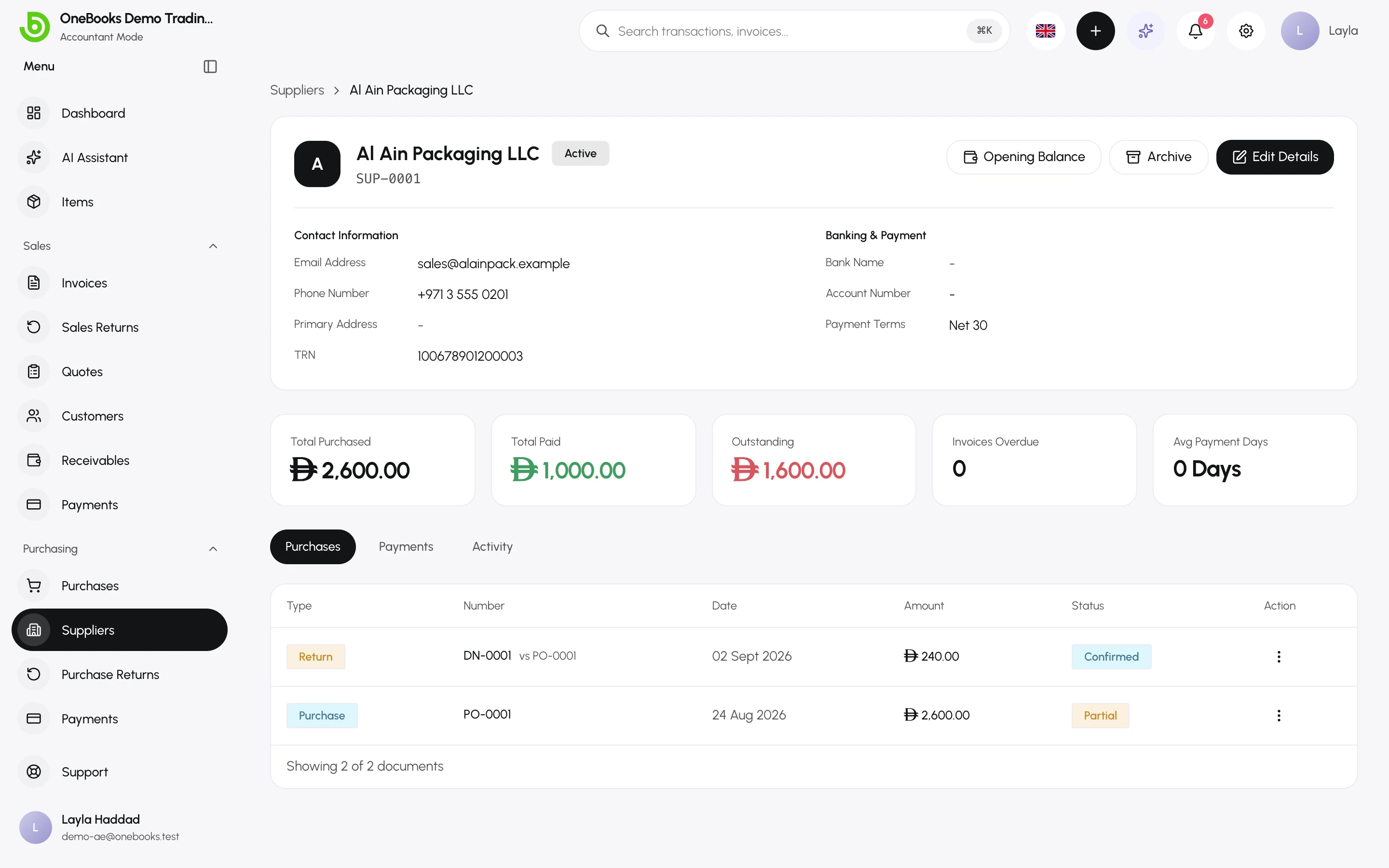
- Balance — what you currently owe this supplier.
- Purchases — every bill and debit note with status and balance due.
- Payments — every supplier payment and what it was applied to.
- Activity — the timeline.
- Opening Balance — record what you owed before using OneBooks; see Opening balances.
- Unapplied credit — shown when a standalone payment or a debit note has value not yet applied to a bill.
Edit, archive, restore, delete
Section titled “Edit, archive, restore, delete”Edit updates details; Archive hides a supplier from pickers while keeping history (Restore brings it back); Delete permanently is limited to owners and admins and to suppliers without documents.
Related
Section titled “Related”Import and exportBulk-import suppliers.