

A quote (estimate) tells a customer what you would charge. Quotes never post to the ledger; only the invoice you convert them into does.
Create a quote
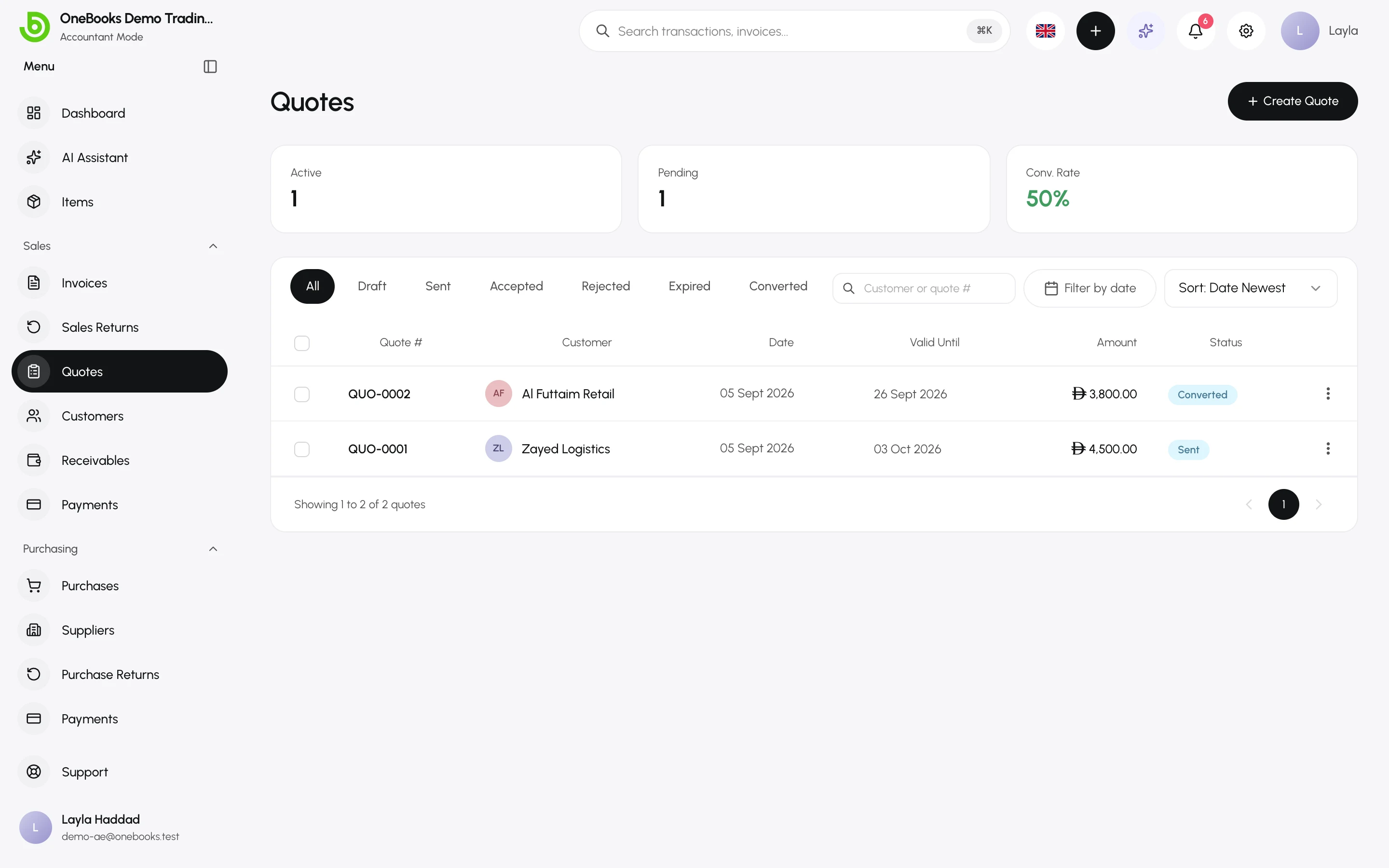
Section titled “Create a quote”- Open Sales → Quotes and select Create Quote.
- Pick the customer, the issue date and the valid until date.
- Add lines from your items or free-text descriptions, with quantity, unit price and tax.
- Add a discount, notes (for example payment terms) and select Save.
Send, accept, reject
Section titled “Send, accept, reject”Open the quote and use the actions:
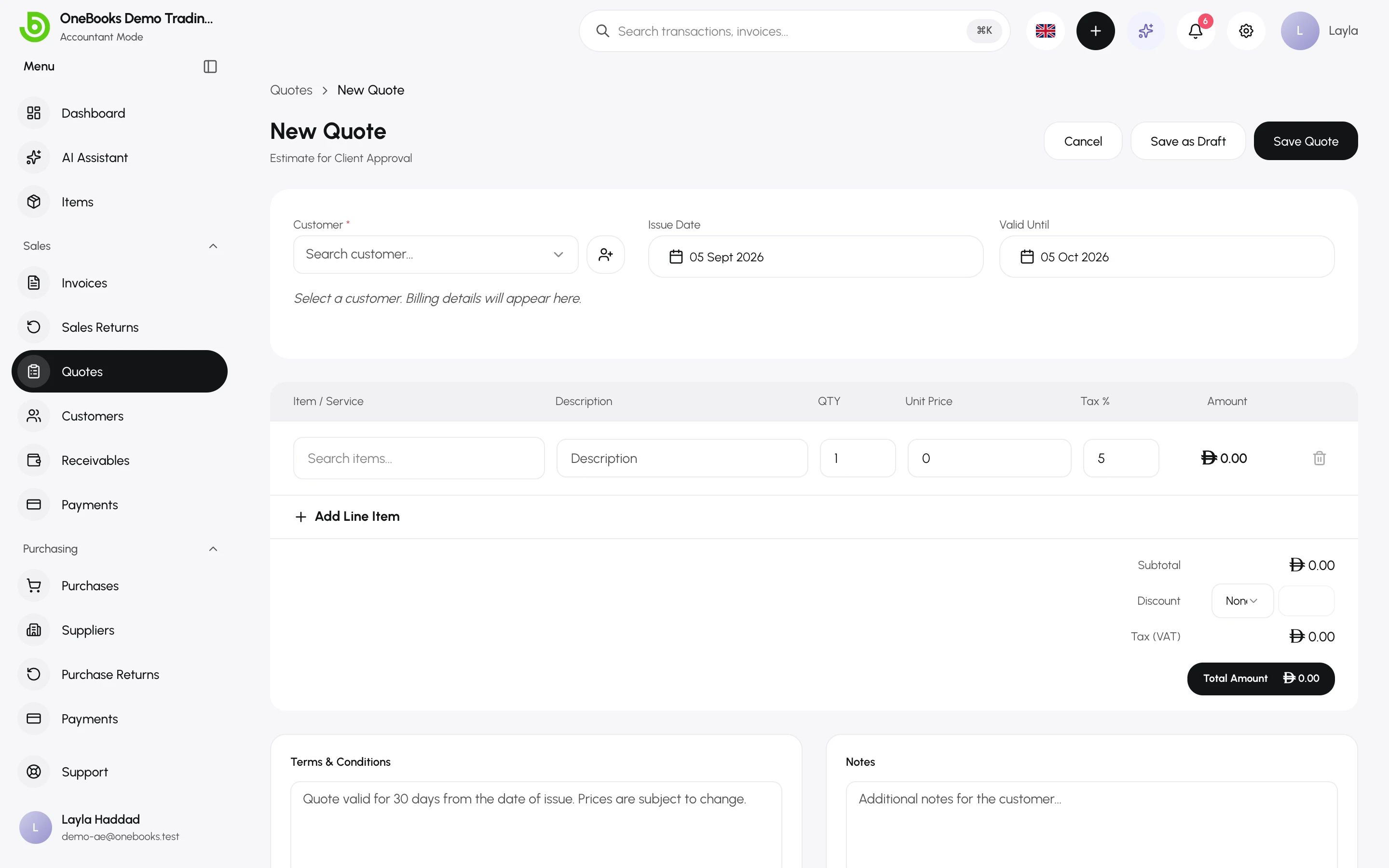
- Send — by Email, WhatsApp or Download the PDF. The status becomes Sent.
- Accept or Reject — record the customer’s answer. Rejected quotes stay for reference.
- A sent quote whose valid until date has passed shows as Expired.
Convert to an invoice
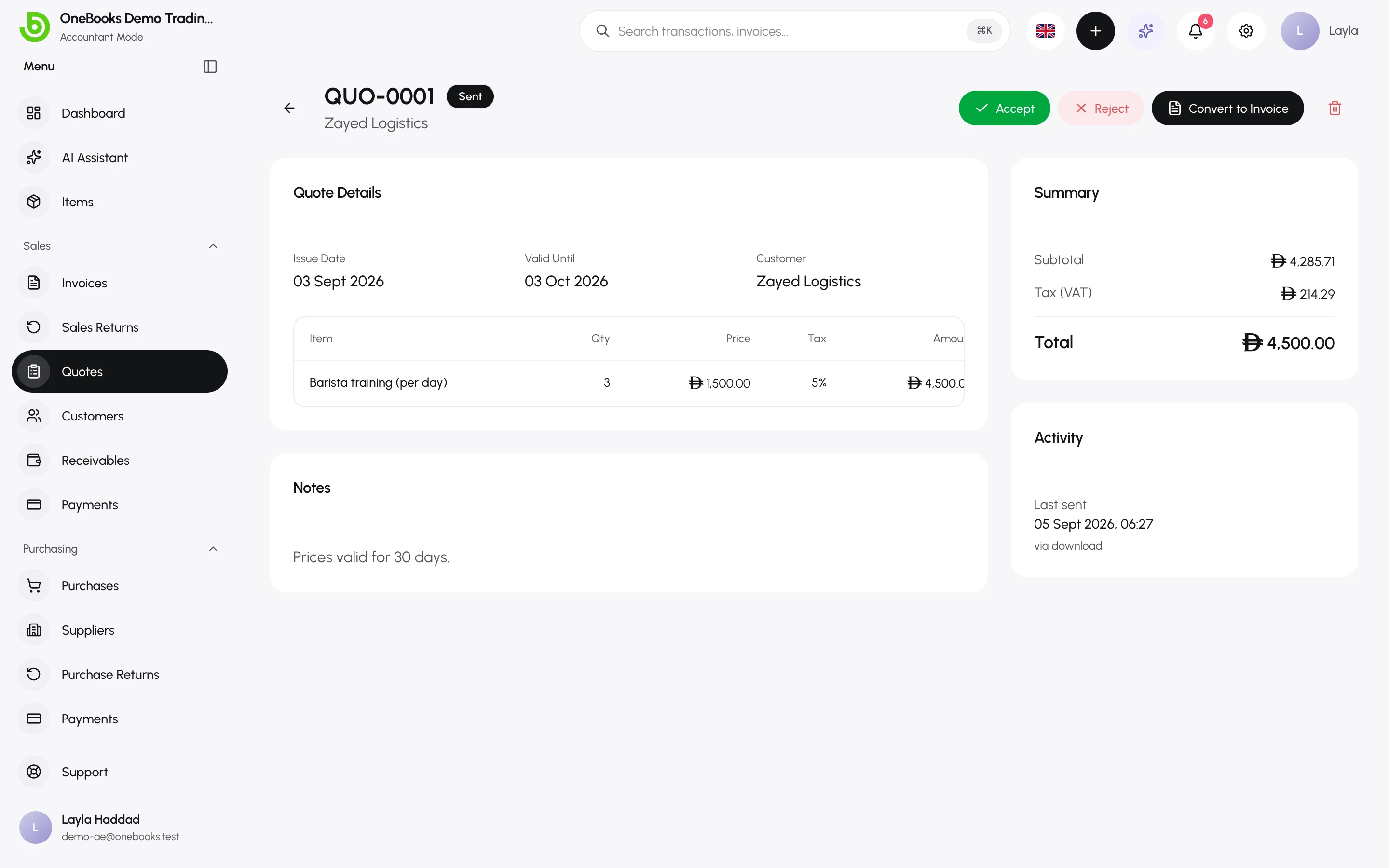
Section titled “Convert to an invoice”- Open an accepted quote and select Convert to Invoice.
- Review the new draft invoice — dates, lines and tax rates — and adjust if anything changed since the quote.
- Send the invoice as usual.
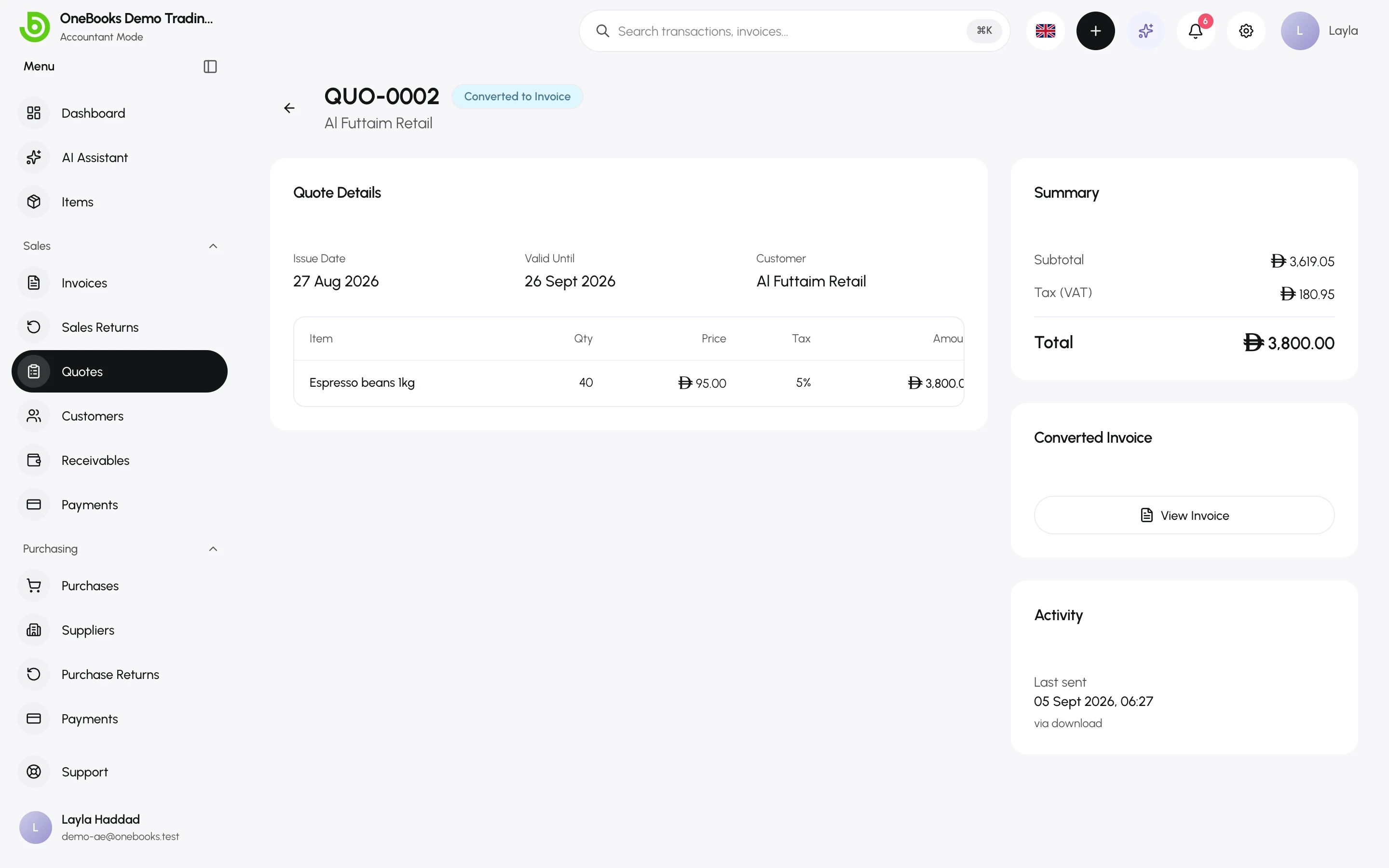
The quote’s status becomes Converted and links to the invoice. The invoice takes your current tax settings, so check line tax rates before sending if they changed after the quote was written.
Statuses
Section titled “Statuses”| Status | Meaning |
|---|---|
| Draft | Editable, not sent. Can be deleted. |
| Sent | Delivered to the customer. |
| Accepted / Rejected | The customer’s answer. |
| Expired | Sent, and the valid-until date has passed. |
| Converted | An invoice was created from it. |
Related
Section titled “Related”Print templatesCustomise the quote PDF.