

The chart of accounts is the list of categories every transaction is filed under. OneBooks ships a complete chart at sign-up, so you never have to build one; you extend it when you need more detail.
Reading the chart
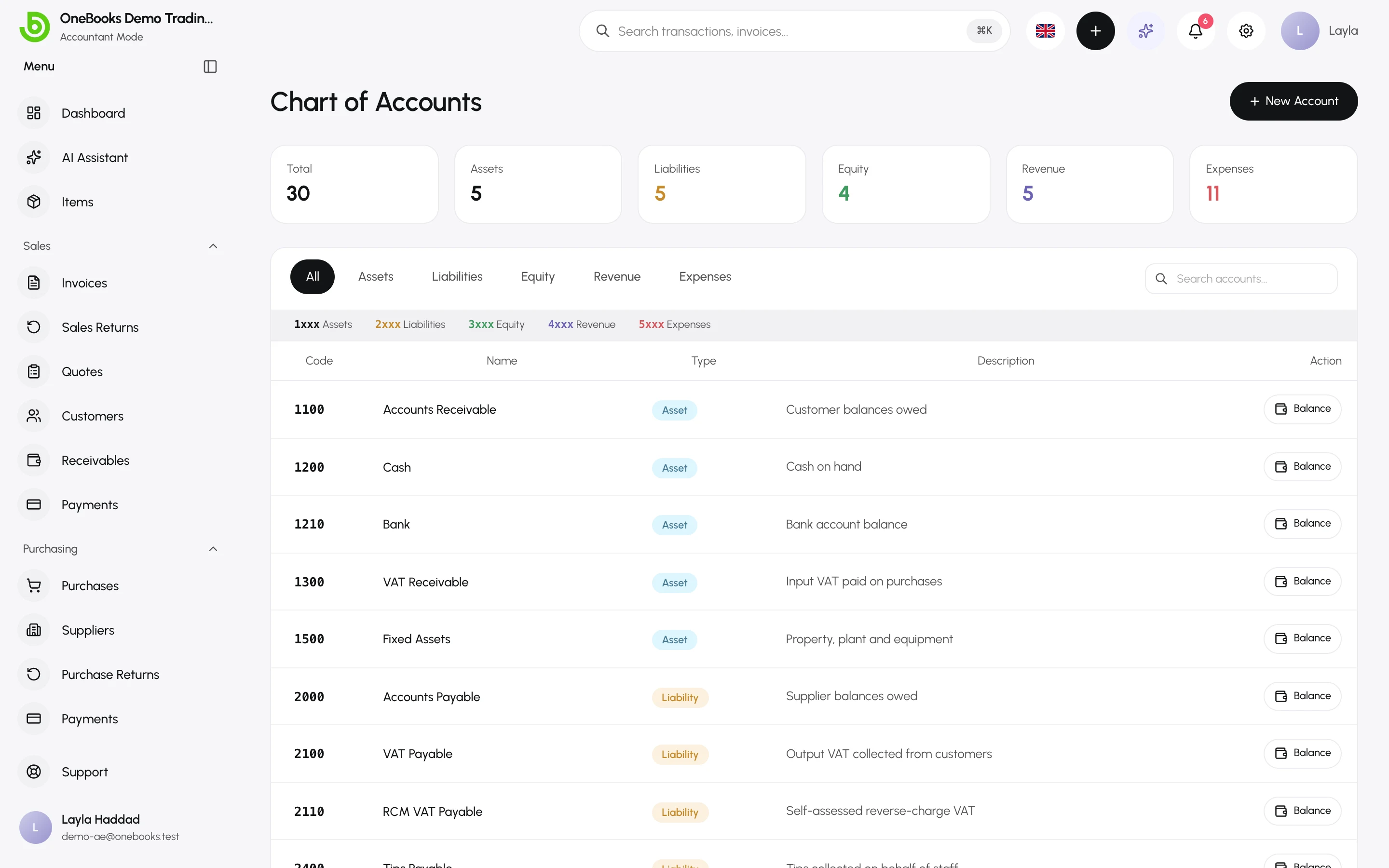
Section titled “Reading the chart”- Code — a number that orders and identifies the account: 1xxx assets, 2xxx liabilities, 3xxx equity, 4xxx revenue, 5xxx expenses.
- Type — decides which report the account appears on.
- System accounts — the ones OneBooks posts to automatically (receivables, payables, tax, cash, bank, revenue, cost of goods sold, retained earnings). They cannot be archived or deleted.
- Parent — accounts can be nested; balances roll up to the parent on reports.
The full default list is in Default chart of accounts.
Add an account
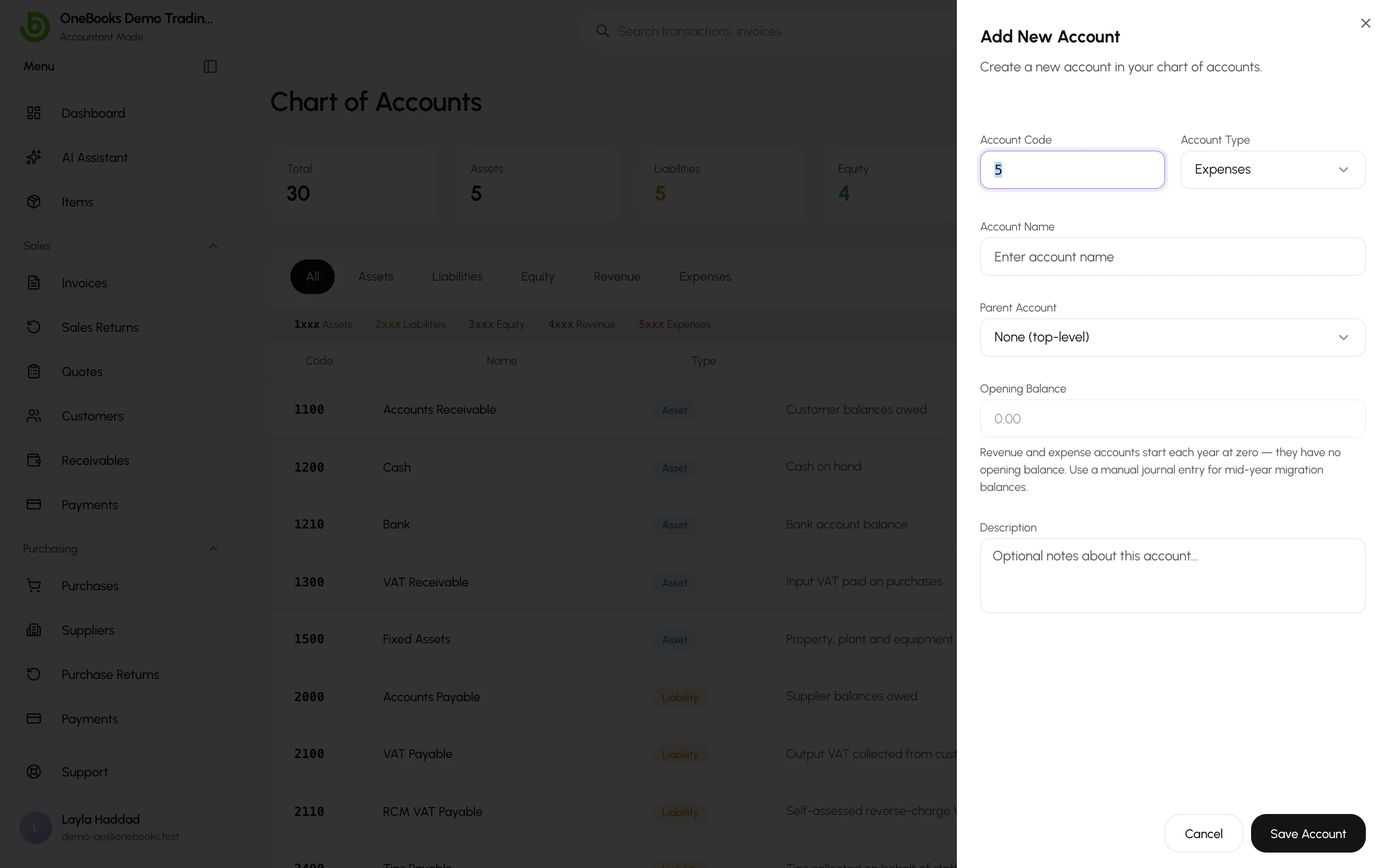
Section titled “Add an account”- Open Accounting → Chart of Accounts (Accountant mode) and select New Account.
- Choose the type, a code in the matching range and a name.
- Pick a parent to nest it — for a bank account choose 1210 Bank, for an expense category choose the closest 5xxx account or none.
- For a balance-sheet account, optionally enter an opening balance as of your start date.
- Select Save.
Edit and archive
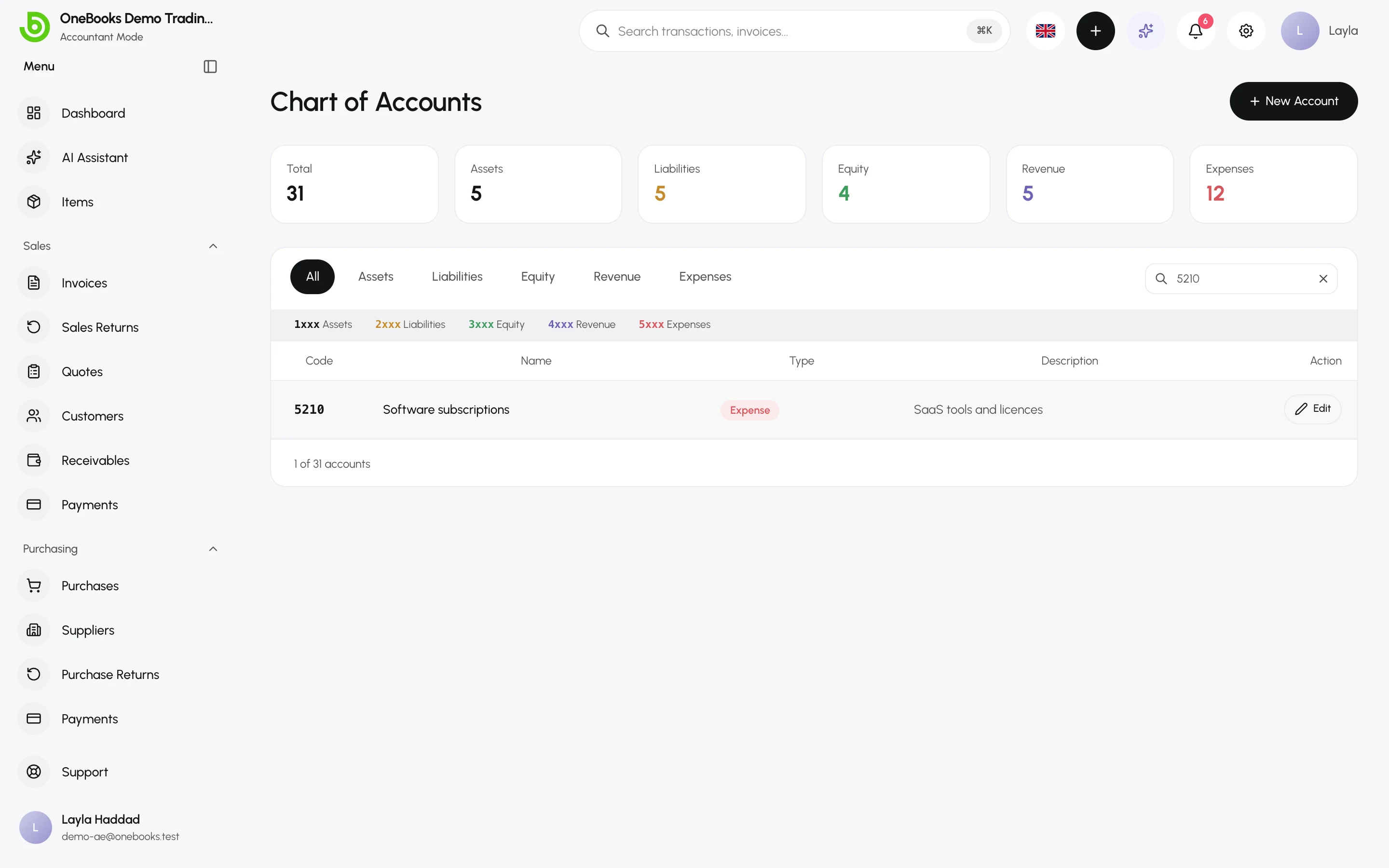
Section titled “Edit and archive”Select the edit action on a row to rename an account or change its parent. Archive retires an account: it disappears from pickers and no new entry can post to it, while its history stays on every report. Restore brings it back. Accounts with children cannot be archived until the children are moved.
Opening balances on accounts
Section titled “Opening balances on accounts”Use the Set opening balance action on a balance-sheet account to record its balance on the day before you started in OneBooks. Revenue and expense accounts cannot carry opening balances — see Opening balances.