

Connect Claude, ChatGPT and other AI agents
OneBooks runs an MCP server (Model Context Protocol), so the AI agents you already use can work on your books: pull reports, look up records, search this documentation and prepare documents that you confirm. They get exactly the tools the in-app assistant has, under the same rule — nothing is written until a human approves it.
An AI agent built into your browser, such as the one in the ChatGPT desktop app, can also use OneBooks with nothing to connect — see AI agents in your browser (WebMCP).
Pick your client
Section titled “Pick your client”Cursor, VS Code, the MCP Inspector and custom agents connect the same way — see the section on other MCP clients below.
What you need
Section titled “What you need”- A OneBooks account. The agent inherits your role: a viewer gets read-only tools, a member can propose documents, and by default only an owner or admin can propose customer and supplier payments, payment allocations, contra transfers, journal entries, account changes and budgets. Proposing an edit to a customer’s or supplier’s details needs permission to manage customers or suppliers, which every member has by default.
- Claude and ChatGPT reach OneBooks from their own servers; Claude Code and OpenClaw connect from your computer. Either way the client signs in through the consent screen below — never with a pasted key.
Approve access
Section titled “Approve access”The first time a client connects, OneBooks opens its sign-in and consent screen.
- Sign in with your OneBooks email and password if you are not signed in already.
- Check the business named on the screen — access is granted for your active business only.
- Review what the app will be able to do, then select Approve (or Deny).
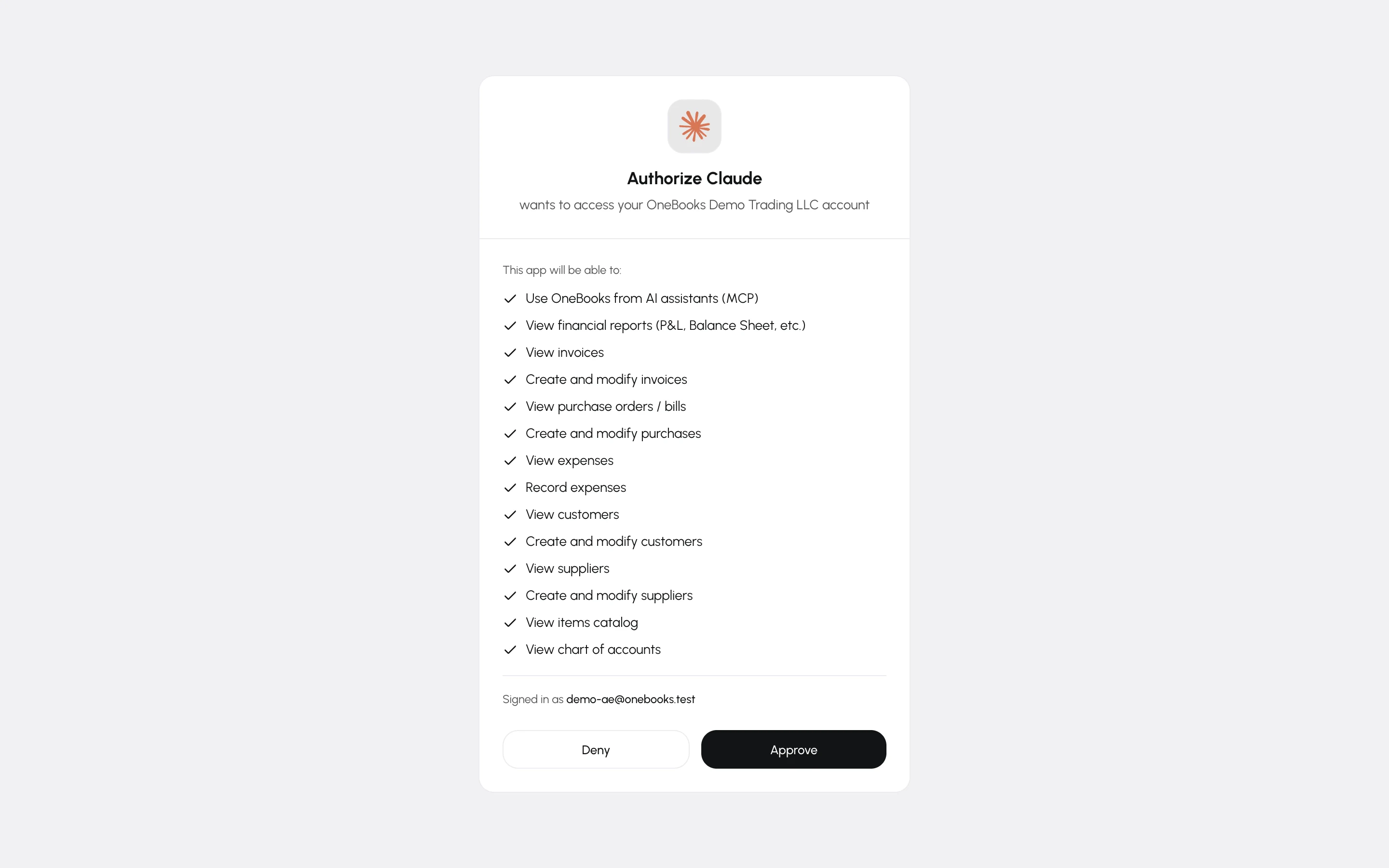
Switching your active business in OneBooks ends the connection; connect again and consent for the new business.
Claude
Section titled “Claude”Custom connectors are available on every Claude plan (the free plan allows one). Claude connects to OneBooks from Anthropic’s servers, so a connector added once works in the browser and in Claude Desktop alike.
- Open Customize → Connectors. On Team and Enterprise plans an owner adds it under Organization settings → Connectors → Add → Custom; members then select Connect.
- Select Add custom connector, name it OneBooks and enter
https://api.getonebooks.com/mcp. Leave the advanced OAuth fields empty — Claude identifies itself to OneBooks automatically. - Select Connect and approve access on the OneBooks screen.
- In a chat, open the + menu, choose Connectors and switch OneBooks on. Then ask: “What is my cash position?”
Claude Code
Section titled “Claude Code”Register the server once for all your projects, then sign in from the /mcp panel:
claude mcp add --transport http onebooks --scope user https://api.getonebooks.com/mcpInside Claude Code run /mcp, choose onebooks and finish the sign-in in the browser. claude mcp list shows the connection and claude mcp remove onebooks removes it. Claude Code identifies itself with a client metadata document, so there is nothing to register.
ChatGPT
Section titled “ChatGPT”ChatGPT adds OneBooks as a custom MCP server — the flow that used to be called Developer mode. Availability depends on your ChatGPT plan, and in a workspace an admin may have to allow custom connectors first. Set it up once on the web; the connector belongs to your ChatGPT account.
- Open Settings → Connectors and select Add custom MCP server.
- Name it OneBooks, enter
https://api.getonebooks.com/mcp, choose OAuth as the authentication and confirm that you trust the provider. - Approve access on the OneBooks screen.
- In a new chat, open the + menu, enable OneBooks for that conversation, and ask away.
For search and deep research, ChatGPT uses two read-only tools — search and fetch — which find and quote your invoices, purchases, customers, suppliers and items, limited to the records your role can see. Reports and drafting use the rest of the tools in a chat where OneBooks is enabled.
OpenClaw
Section titled “OpenClaw”OpenClaw is an open-source personal agent that runs on your own machine and talks to you through your messaging apps.
- Open Settings → MCP, select Add server, name it
onebooks, choose the Streamable HTTP transport and enterhttps://api.getonebooks.com/mcp. - Set the server’s authentication to OAuth (the configuration entry is shown below).
- Run
openclaw mcp login onebooks. The browser opens the OneBooks consent screen and OpenClaw stores the tokens; if the browser cannot reach OpenClaw’s callback, use the--codecommand it prints. openclaw mcp status --verboseconfirms the connection.
In OpenClaw’s configuration file the server entry reads:
{ mcp: { servers: { onebooks: { url: "https://api.getonebooks.com/mcp", transport: "streamable-http", enabled: true, auth: "oauth", }, }, },}Other MCP clients
Section titled “Other MCP clients”Any client that supports Streamable HTTP and OAuth 2.0 with PKCE can connect — Cursor, VS Code, Windsurf, the MCP Inspector, custom agents. Where the client takes a configuration file, the entry is:
{ "mcpServers": { "onebooks": { "type": "http", "url": "https://api.getonebooks.com/mcp" } }}The client discovers the sign-in server, registers itself (or presents its client metadata document) and opens the consent screen.
What the agent can do
Section titled “What the agent can do”Exactly what the in-app assistant can: reports and lookups, answers from this documentation, and proposals for quotes, invoices, credit and debit notes, purchases, expenses, customer and supplier payments and their allocations, contra transfers, journal entries, bank reconciliation, budgets, accounts, items, customers and suppliers — including turning a quote into an invoice, sending a draft invoice or finalizing a draft purchase — plus edits to a draft invoice or purchase, an item, an account, a budget’s amounts, or a customer’s or supplier’s details.
Writing works in two steps here too. The agent asks OneBooks to prepare the document; OneBooks stores a proposal and returns a preview, which the agent shows you. Only after you approve that exact preview does the agent confirm the proposal — never in the same turn, once only, and within 24 hours. A proposal you do not approve is never executed; it expires on its own after 24 hours. There are no delete, void or refund tools for any agent, and the only edit tools change a draft invoice or purchase, an item, an account, a budget’s amounts, or a customer’s or supplier’s details — never a posted document, never bank details.
Manage and revoke access
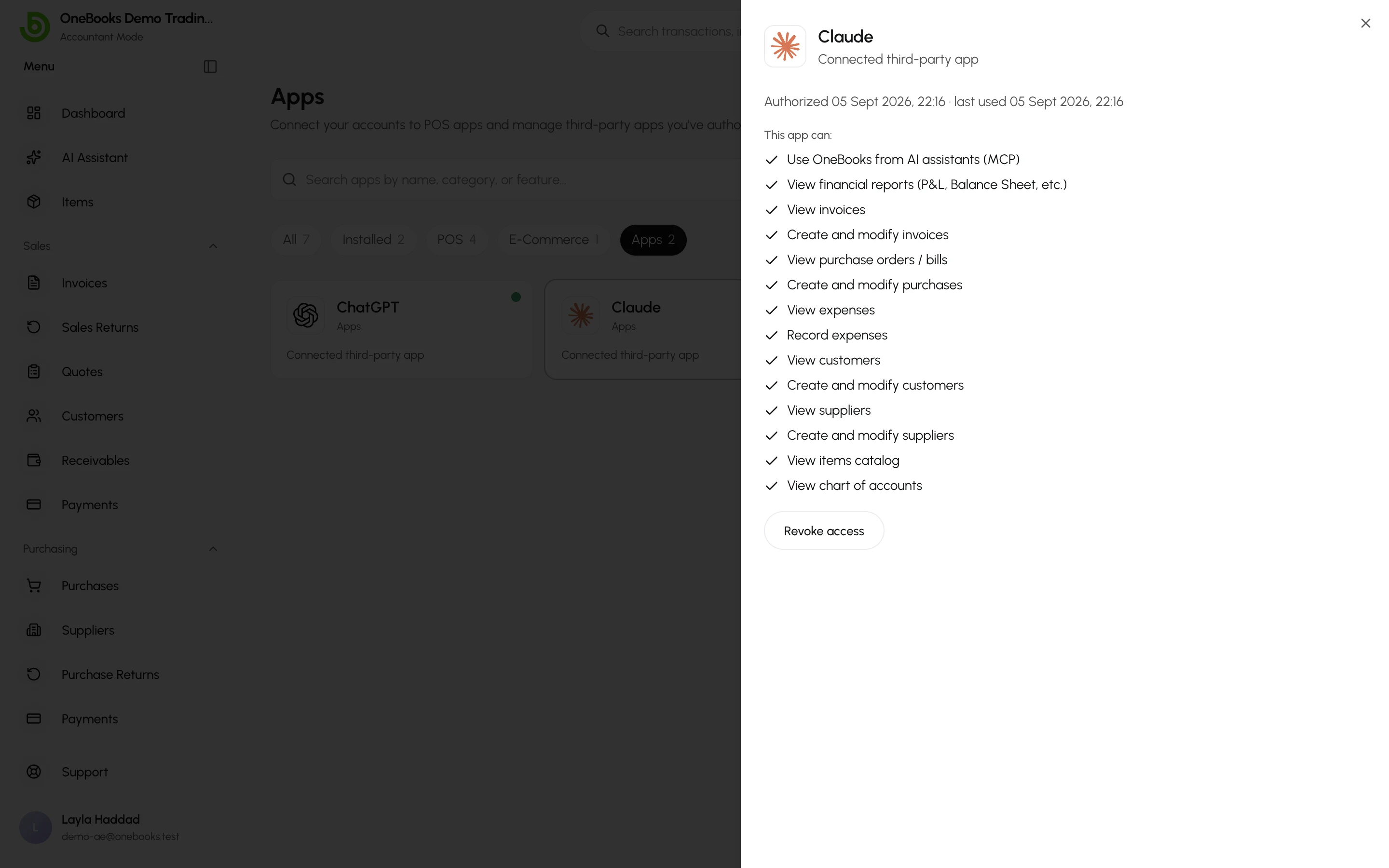
Section titled “Manage and revoke access”Apps → Integrations with the Connected apps filter lists the AI clients connected to your business, each with its own name and mark, when it was authorised and when it was last used.
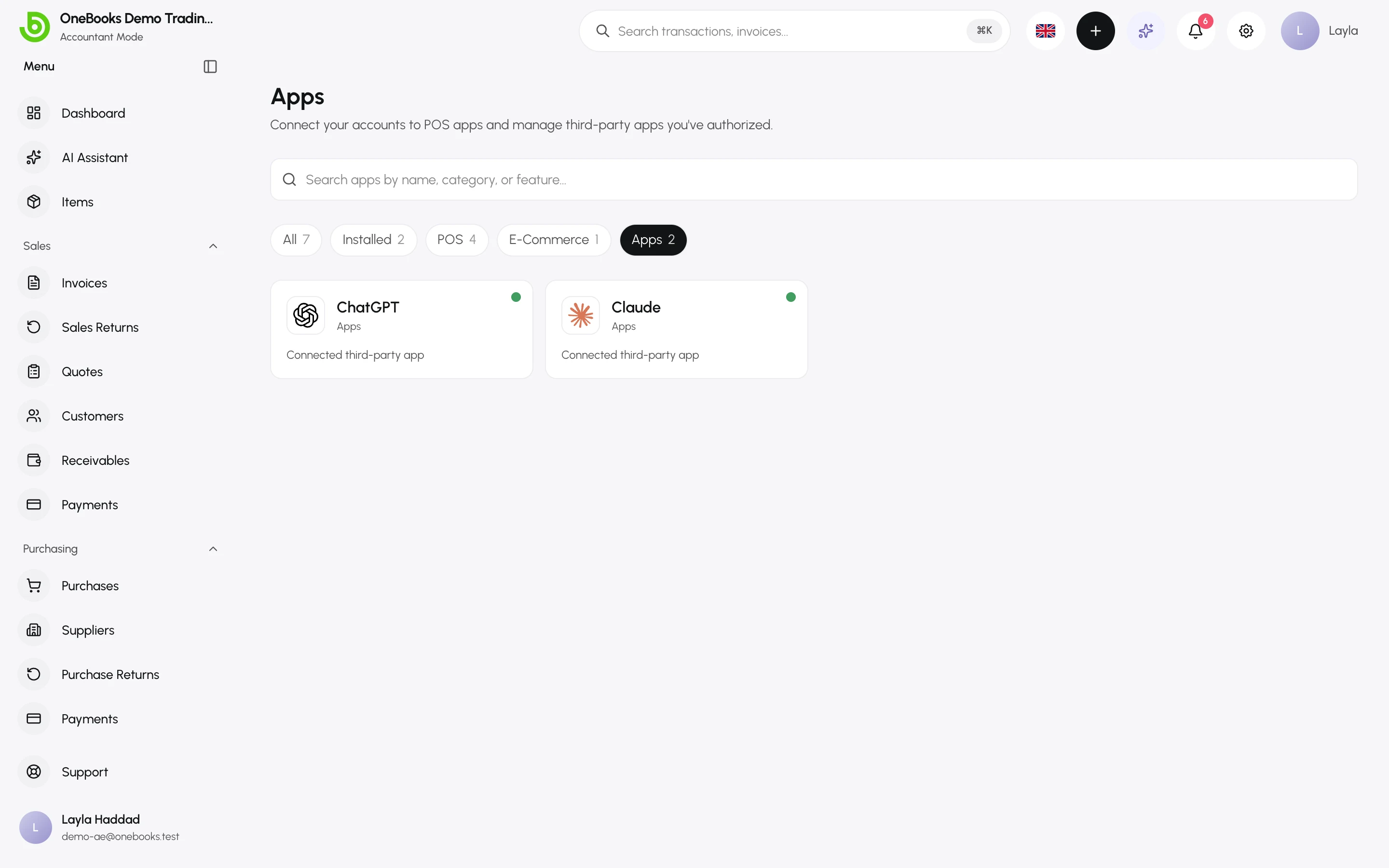
Select a card to see what the app can do and to Revoke access. Its tokens stop working immediately; nothing it already created is removed.
Limits
Section titled “Limits”300 requests per minute for each connected AI client in your business, a weekly call cap per business, and the weekly AI credit allowance your plan includes — 100 credits on Free, 400 on Standard, 1,200 on Professional and 3,000 on Premium — shared with the built-in assistant. See Credits and limits.
Troubleshooting
Section titled “Troubleshooting”- The consent screen names the wrong business — switch your active business in OneBooks first, then connect again.
- The client stopped working after you switched business — expected; connect again and consent for the new business.
- Tools are missing — a viewer gets read tools only, payments, allocations, contra transfers, journal entries, account changes and budget proposals (
create_budget,update_budget_lines) need an owner or admin by default, editing a customer or supplier needs permission to manage them, and in ChatGPT OneBooks must be enabled for the conversation. A client connected before quotes, returns, journal entries and bank reconciliation were added (October 2026) sees them only after you connect it again and approve the new permissions once. Budget tools were added on 15 October 2026, so a client connected before then sees them only after you reconnect it and approve the budget permissions once — an existing connection keeps the permissions it was approved with. - The agent reports exhausted credits — the allowance renews every 7 days from the moment your business signed up; see Credits and limits.
- OpenClaw shows nothing after Approve — the browser could not reach its local callback; run the
--codecommand printed in the terminal.
For developers
Section titled “For developers”Building your own MCP client or integration? The developer documentation at developer.getonebooks.com covers OAuth, scopes, dynamic registration, client metadata documents and the API reference.