

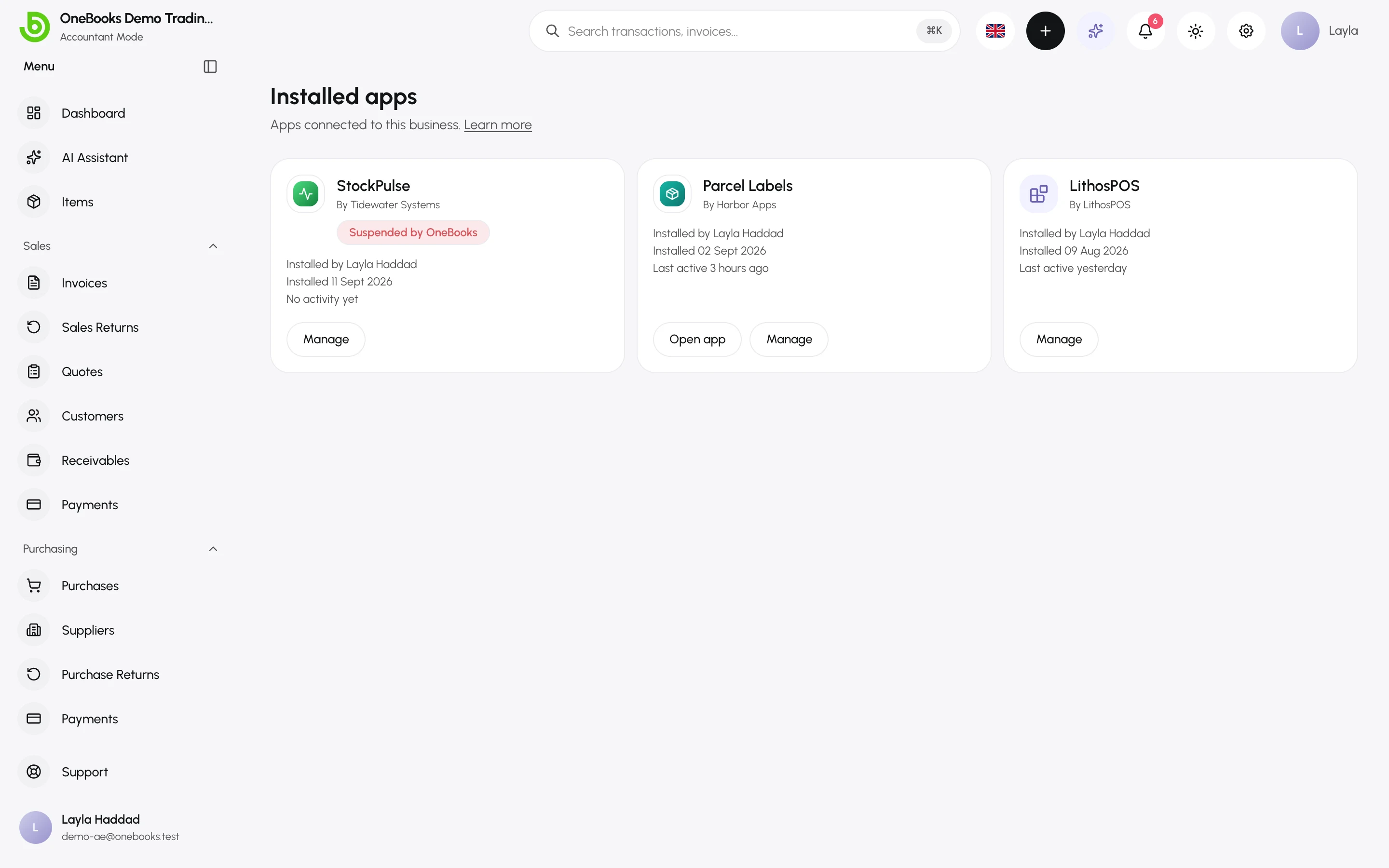
Apps → Installed apps lists every app installed in this business — from the App Marketplace, or connected directly on the developer’s own site. Use it to open an app, see what each one can access and has done, and uninstall it. AI clients you connect yourself, such as Claude or ChatGPT, are managed separately under Connected apps and OAuth — see Connect Claude, ChatGPT and other AI agents.
Before you start
Section titled “Before you start”- Seeing installed apps, opening them and seeing their content on your records needs
integrations.read— every role has it by default. Without it, Apps → Installed apps shows You don’t have access to apps and Ask an owner or admin for access. - Uninstalling needs
integrations.manage— owners and admins have it by default. Without it, an app’s drawer has no Uninstall button. - Editing an app’s field on a record also needs the permission to edit that record.
See Users, roles and permissions.
Your installed apps
Section titled “Your installed apps”Each card shows the app’s icon and name, By and the developer, Installed by and who installed it, Installed and the date, and Last active — or No activity yet. Open app appears for apps with their own screen, except while an app is suspended or no longer available; Manage opens the app’s drawer. A Suspended by OneBooks badge marks an app OneBooks has suspended — directly or by suspending its developer’s account — and a No longer available badge one its developer has deleted or deactivated. With nothing installed, the page shows No apps installed yet and a Browse marketplace button; if the list can’t load, it shows Failed to load installed apps and Try again.
Open an app
Section titled “Open an app”An app with its own screen opens from:
- its own row under Apps in the sidebar, below Marketplace, Installed apps and Integrations;
- Open app on its card in Installed apps, or in its drawer;
- Open app on its marketplace listing.
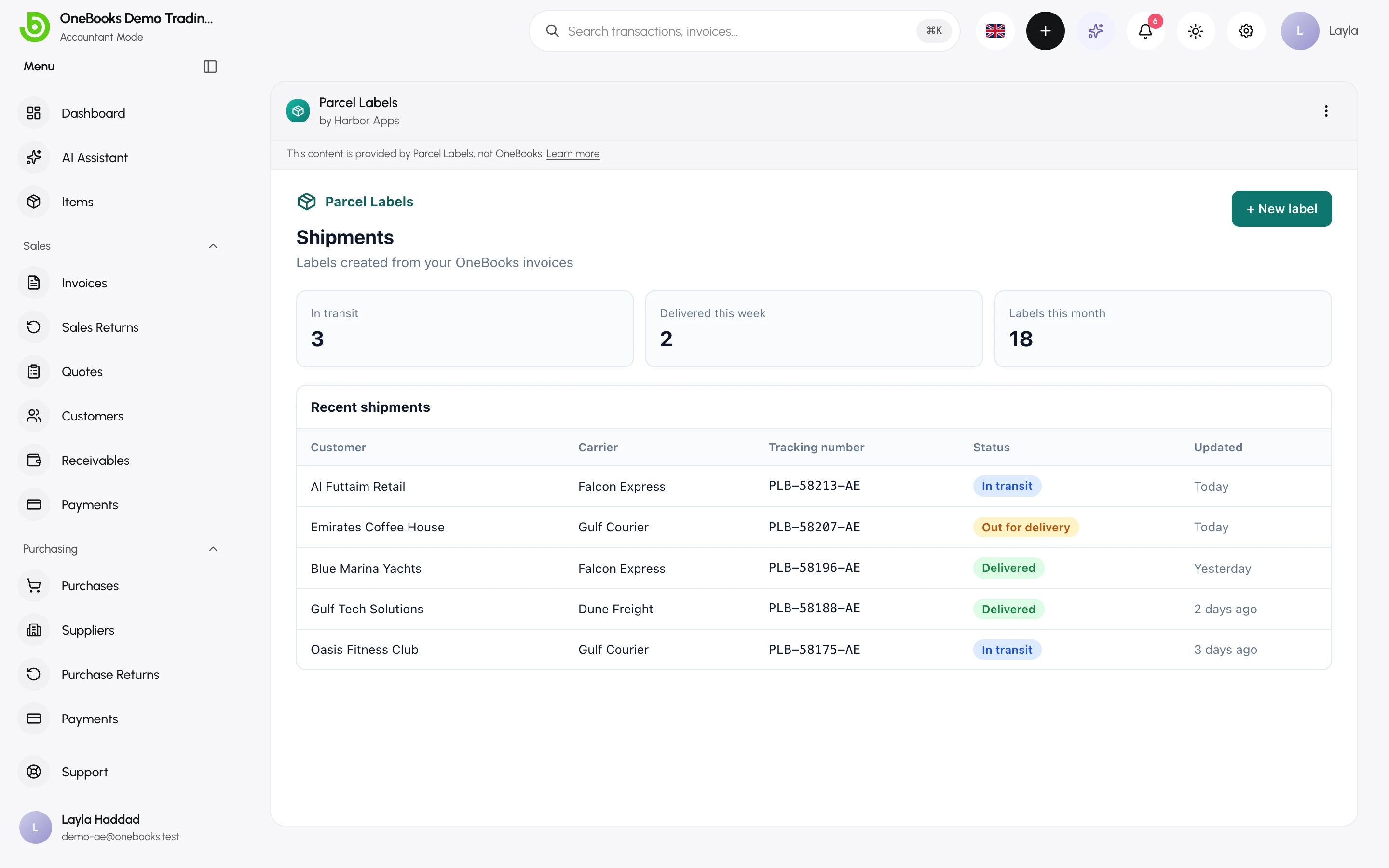
The app fills the page under a bar with its icon, its registered name and by developer, and the line This content is provided by app name, not OneBooks. with a Learn more link to Apps, security and privacy. The app can’t change the name shown there, so it can’t pass itself off as OneBooks: a title the app sets for its own screen appears after the registered name, in grey, never in its place. While the app is busy, a thin bar runs along the top of its screen. The App menu (⋮) at the end of the bar has Manage app, which opens the app’s drawer. Apps that work only in the background have no screen, no sidebar row and no Open app button.
When an app can’t be opened, its page says why: Suspended by OneBooks when OneBooks has suspended the app or its developer’s account (with Manage), No longer available when its developer has deleted or deactivated it (with Manage), This app can’t be opened here when it has no page in OneBooks at the moment (with Manage), App not installed when your business doesn’t have it (with View listing), or This app could not be loaded. for a temporary problem (with Retry). See Troubleshooting.
When an app asks you something
Section titled “When an app asks you something”Some requests from an app come to you as a OneBooks dialog rather than inside the app’s own frame:
- A confirmation — the app’s question carries the line Requested by app name. Nothing happens unless you confirm.
- A picker — Choose a customer, Choose a supplier, Choose an item or Choose an invoice, with Search…. When the app asks for one record, selecting it confirms your choice; when it asks for several, select each one, then confirm with the button showing how many you picked, such as Select 3 items. The app learns only the records you pick, and can ask only for a kind of record its permissions let it view.
Apps inside your records
Section titled “Apps inside your records”Invoices, quotes, customers, suppliers, purchases, sales returns and purchase returns can show content from your apps. An app appears on a kind of record only if your business allowed it to view that kind of record — an app that can’t view invoices never shows up on one.
The Apps menu
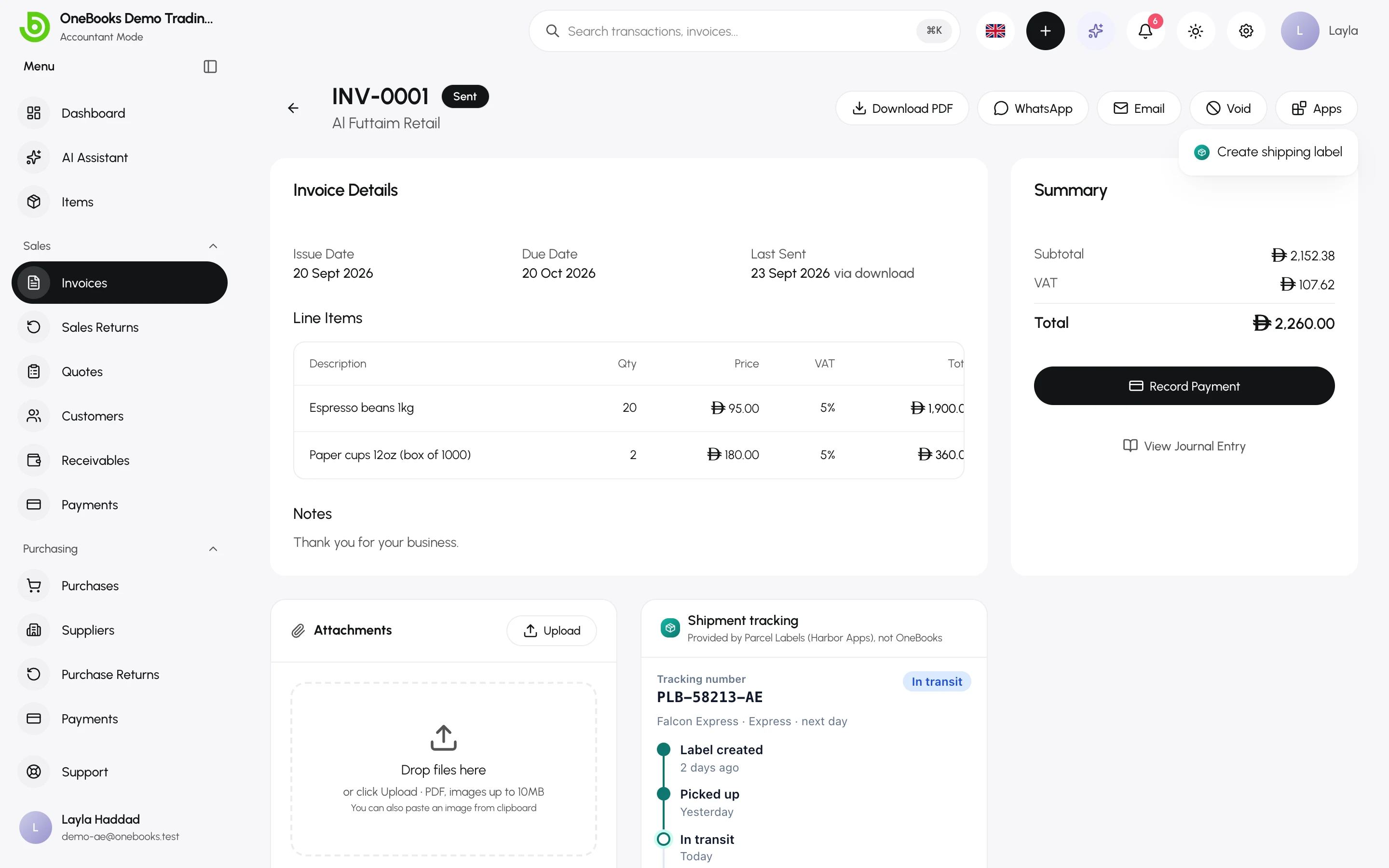
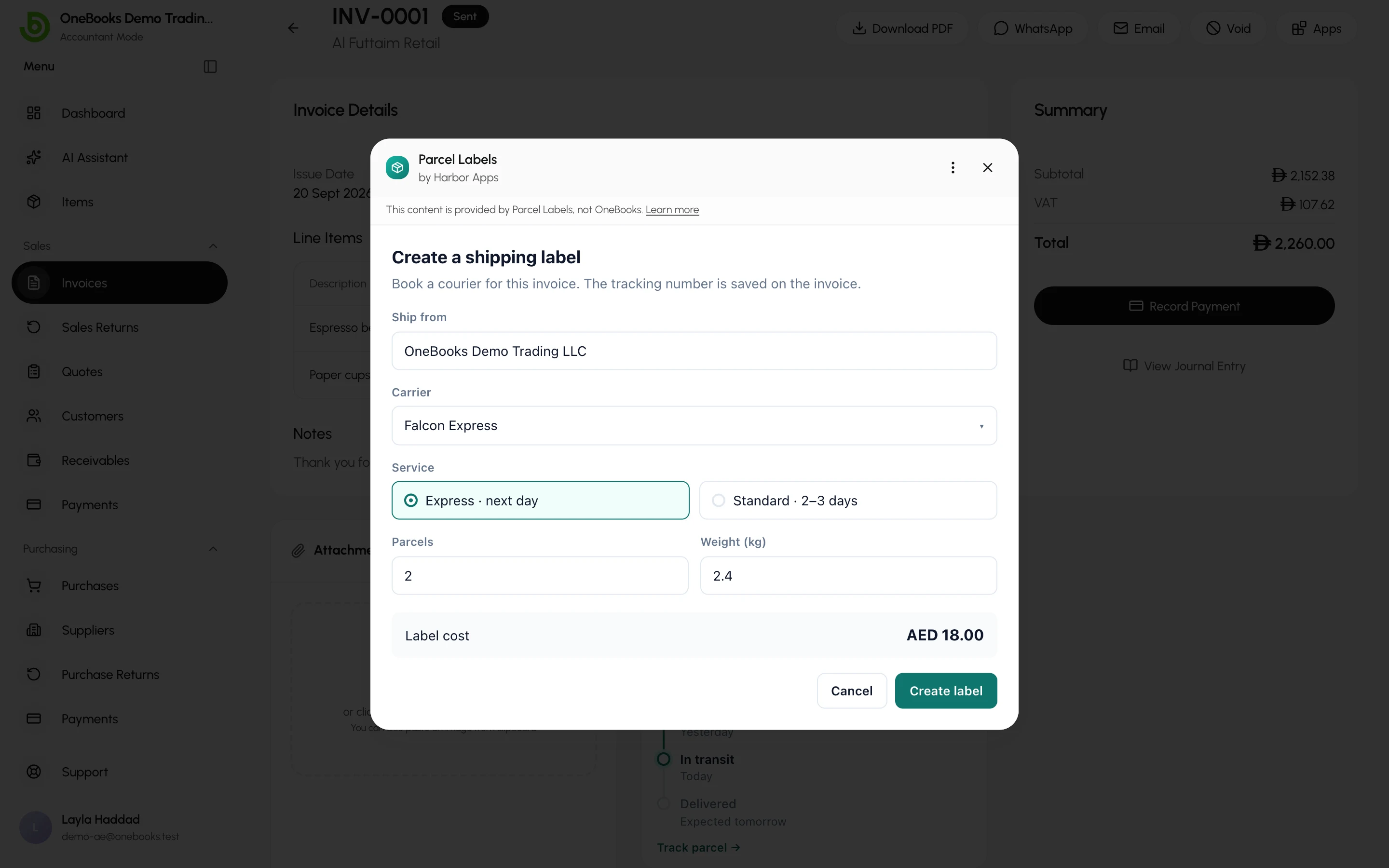
Section titled “The Apps menu”When at least one installed app adds an action to this kind of record, an Apps button appears among the record’s actions. Select it, then an entry — each shows its app’s icon — to open the app in a dialog over the record. The dialog shows the app’s name and developer, with the note that the content comes from the app, not OneBooks, and a tall app scrolls under that header. Close the dialog with Close (×) next to the app menu, with Esc, or by clicking outside it. When you close it, the record’s app cards and App data refresh to show anything the app changed.
App cards
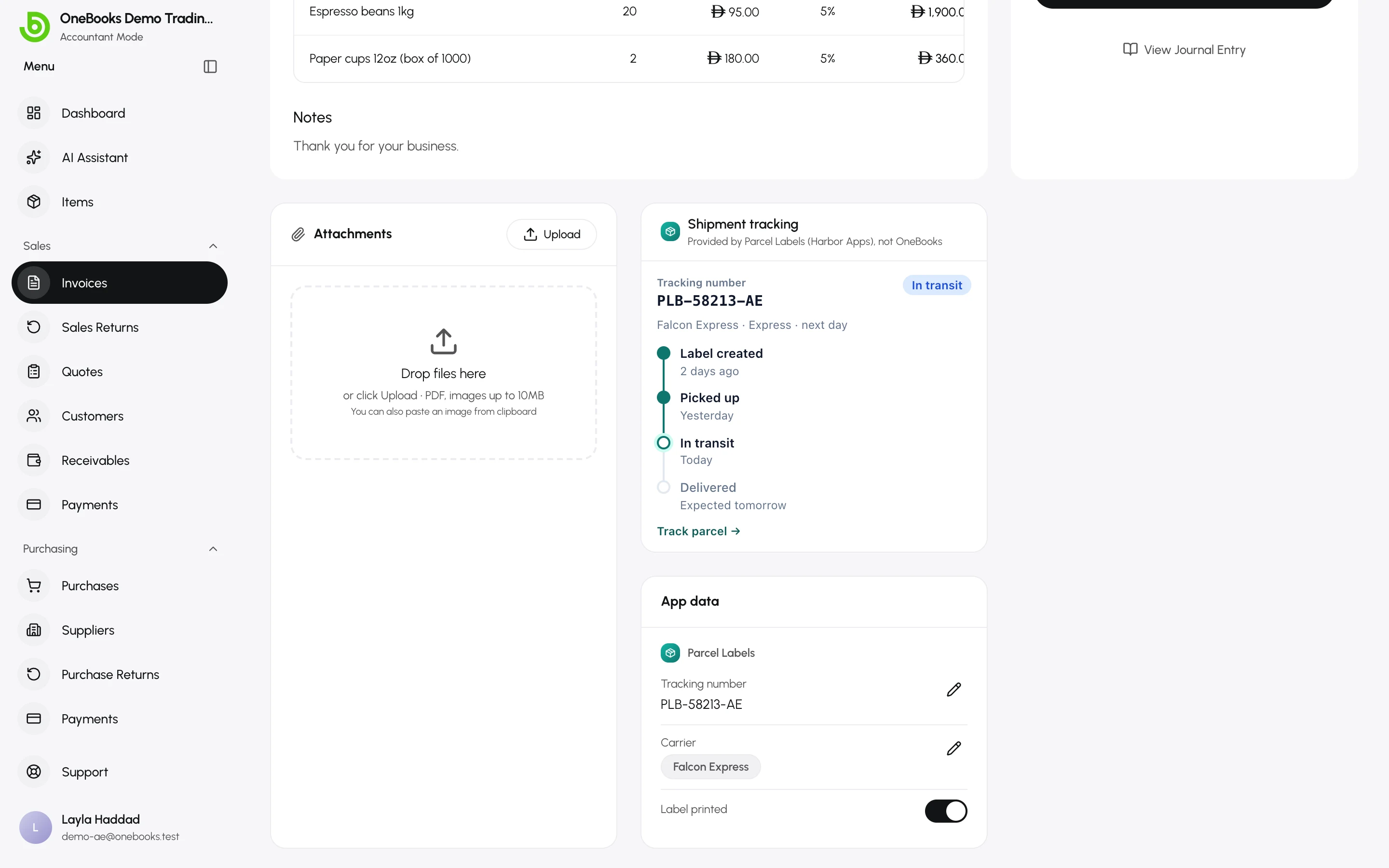
Section titled “App cards”Apps can also add cards lower on the page. Under its title, each card carries the line Provided by app name (developer), not OneBooks. A card shows the app’s own content for this record — for example a shipment’s status — and reloads when an app action on the same record finishes.
The App data card
Section titled “The App data card”The App data card lists the fields your apps keep on this record, grouped under each app’s icon and name — for example a shipment tracking number or a loyalty tier. A field with no value shows a dash. The developer decides which fields you may edit, and you can change one only if you’re also allowed to edit the record itself.
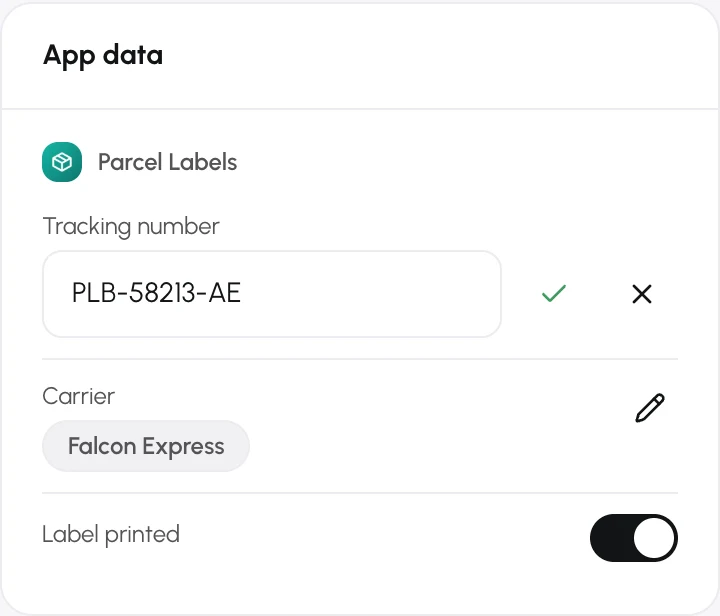
- Select the pencil next to the field — its label is Edit followed by the field’s name. A yes/no field is a switch instead: flip it and it saves straight away.
- Enter the new value. The input matches the field: text, a number, a date, a date and time, a web address, or a list to Choose… from.
- Select the tick (Save field) to save, or the cross (Cancel edit) to discard your change.
A value that doesn’t fit is refused with a message such as Enter a whole number. or Enter a valid web address starting with https://. App data is kept apart from your accounting: it never changes totals, tax, journal entries or reports, and never appears on printed documents or e-invoices.
Apps on the dashboard
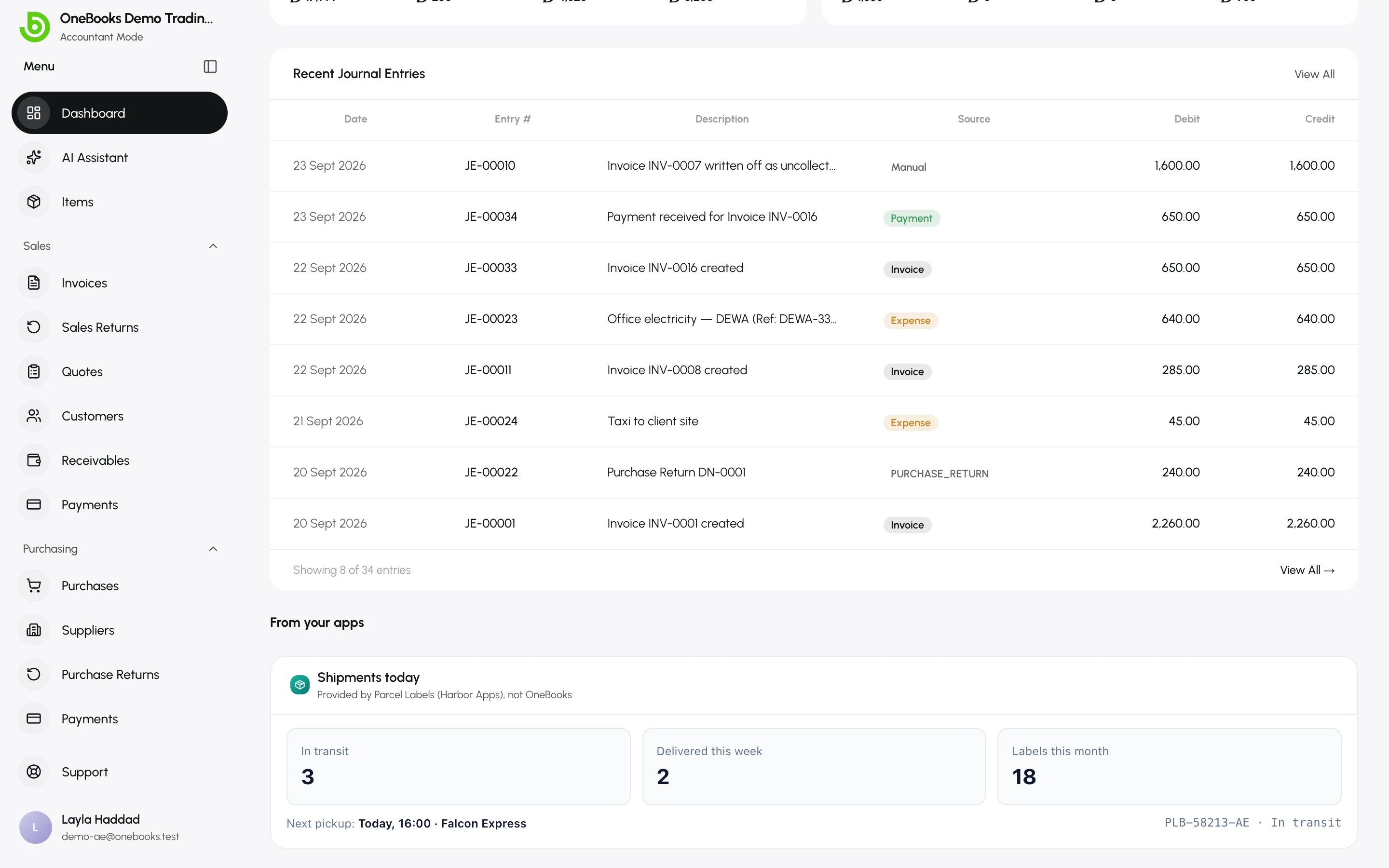
Section titled “Apps on the dashboard”Apps can add cards to your dashboard too. They appear at the bottom, under From your apps, in both Simple and Accountant mode. The section is hidden while no installed app adds a card there.
The manage drawer
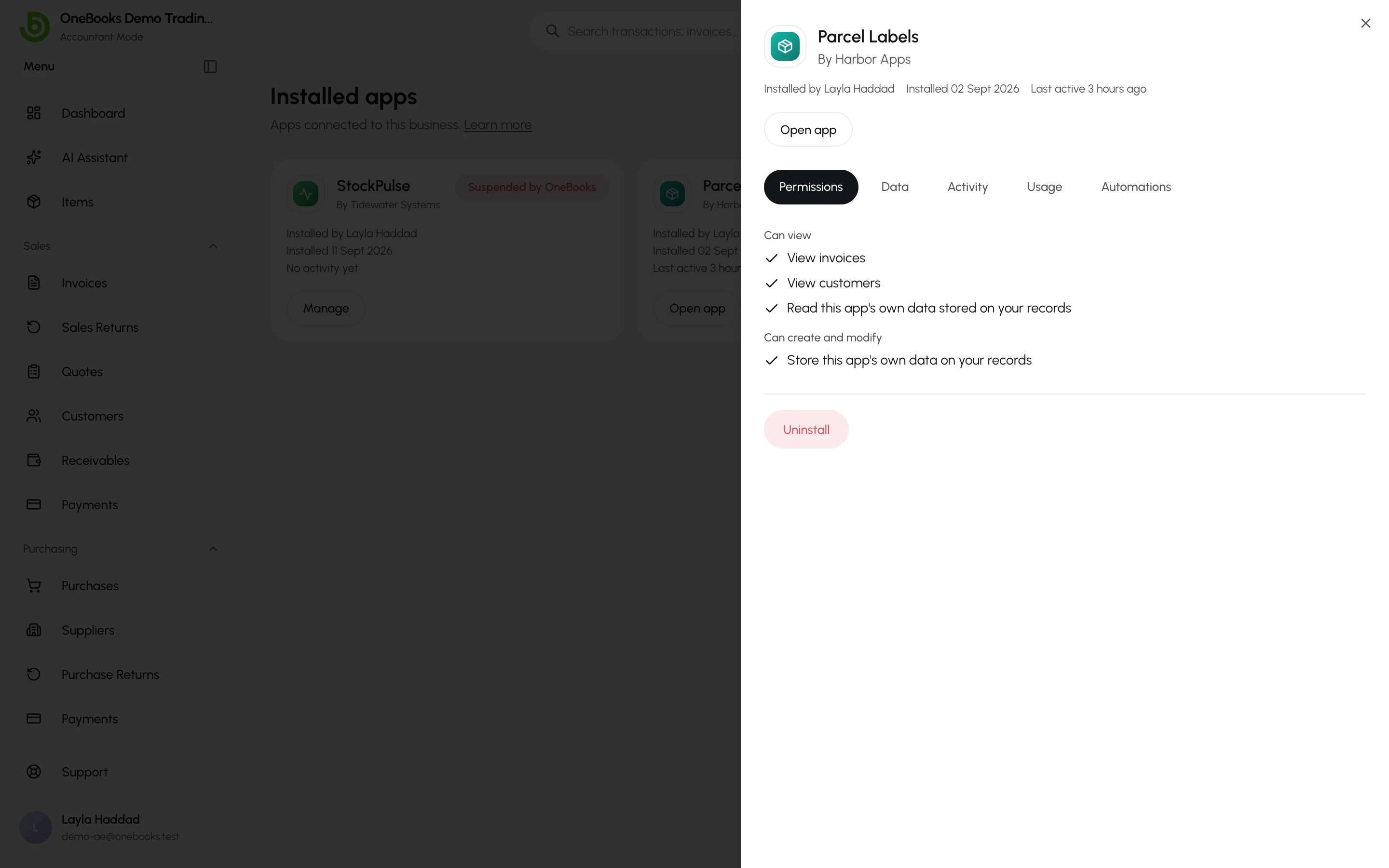
Section titled “The manage drawer”Select Manage on an app’s card — or Manage app in an open app’s menu — to open its drawer. The top shows the app’s icon, name and developer, a Suspended by OneBooks or No longer available badge when one applies (with a line saying why), who installed the app and when, when it was last active, and Open app for apps with a screen (unless the app is suspended or no longer available). Five tabs follow; Uninstall is at the bottom for people who can manage apps.
Permissions
Section titled “Permissions”Everything your business granted the app, in the same words as on its listing, grouped into Can view, Can create and modify and Other access.
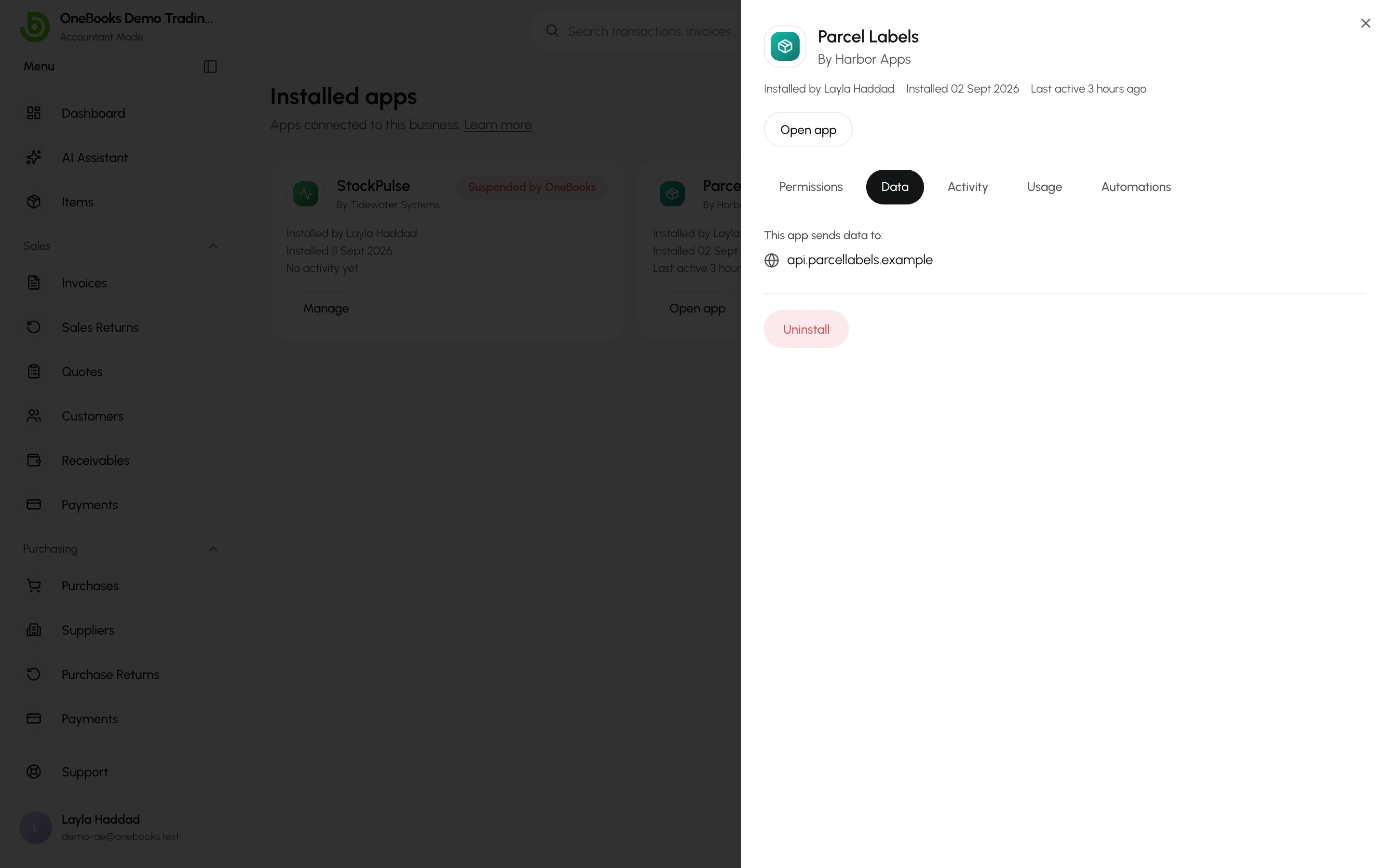
The outside destinations the app’s hosted automations can send data to, under This app sends data to: — the same list as Where your data goes on its listing. An app with no hosted automations, or whose automations can’t send data outside OneBooks, shows This app has no automations that send data to outside services. An app that runs on its developer’s own servers also receives whatever it reads through its permissions, as described in its privacy policy.
Activity
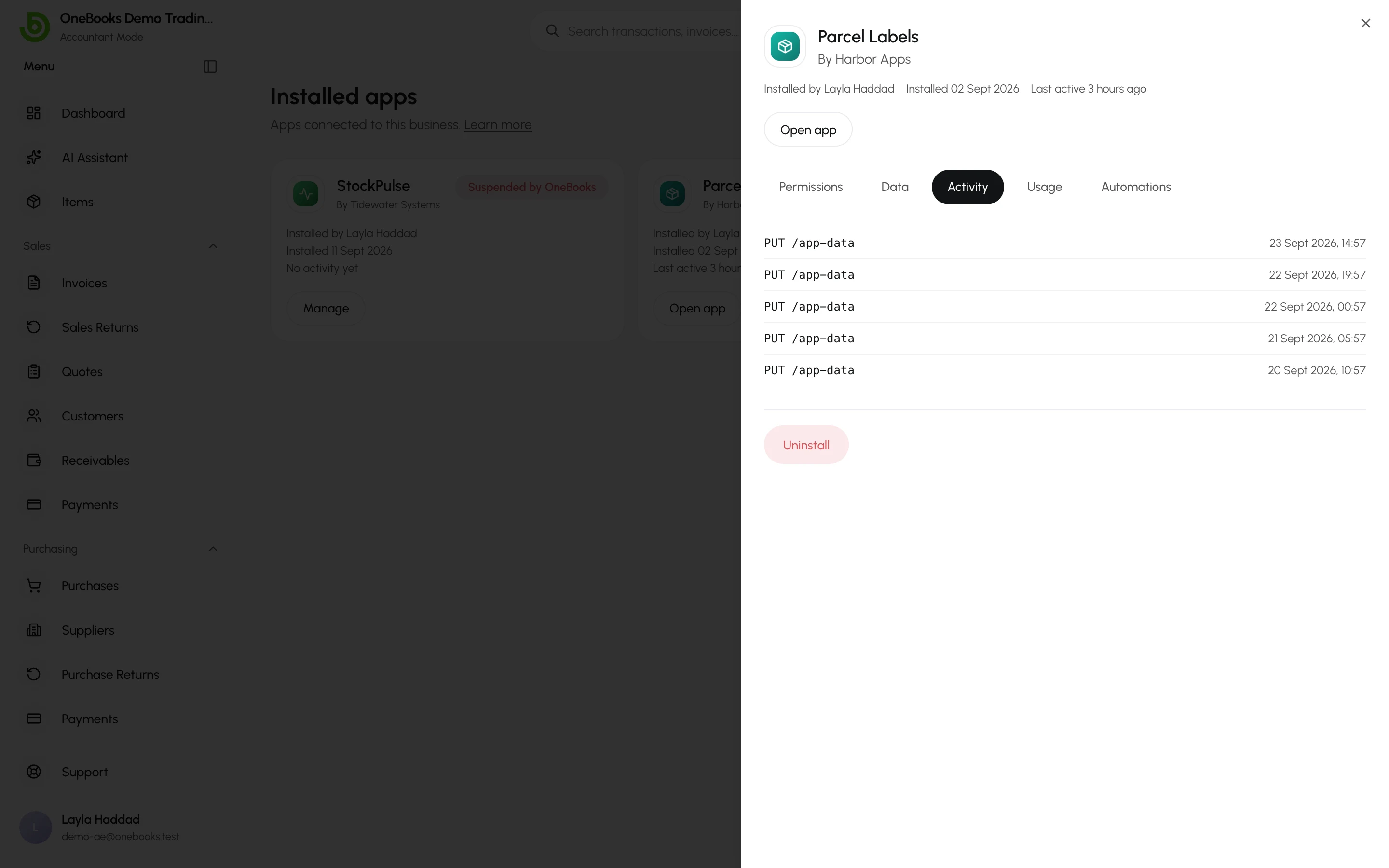
Section titled “Activity”The app’s latest changes to your books — up to 50, newest first. Each row names the request the app made, such as POST /invoices when it created an invoice, with the date and time. No recent activity. means it hasn’t changed anything lately; what it reads is counted under Usage.
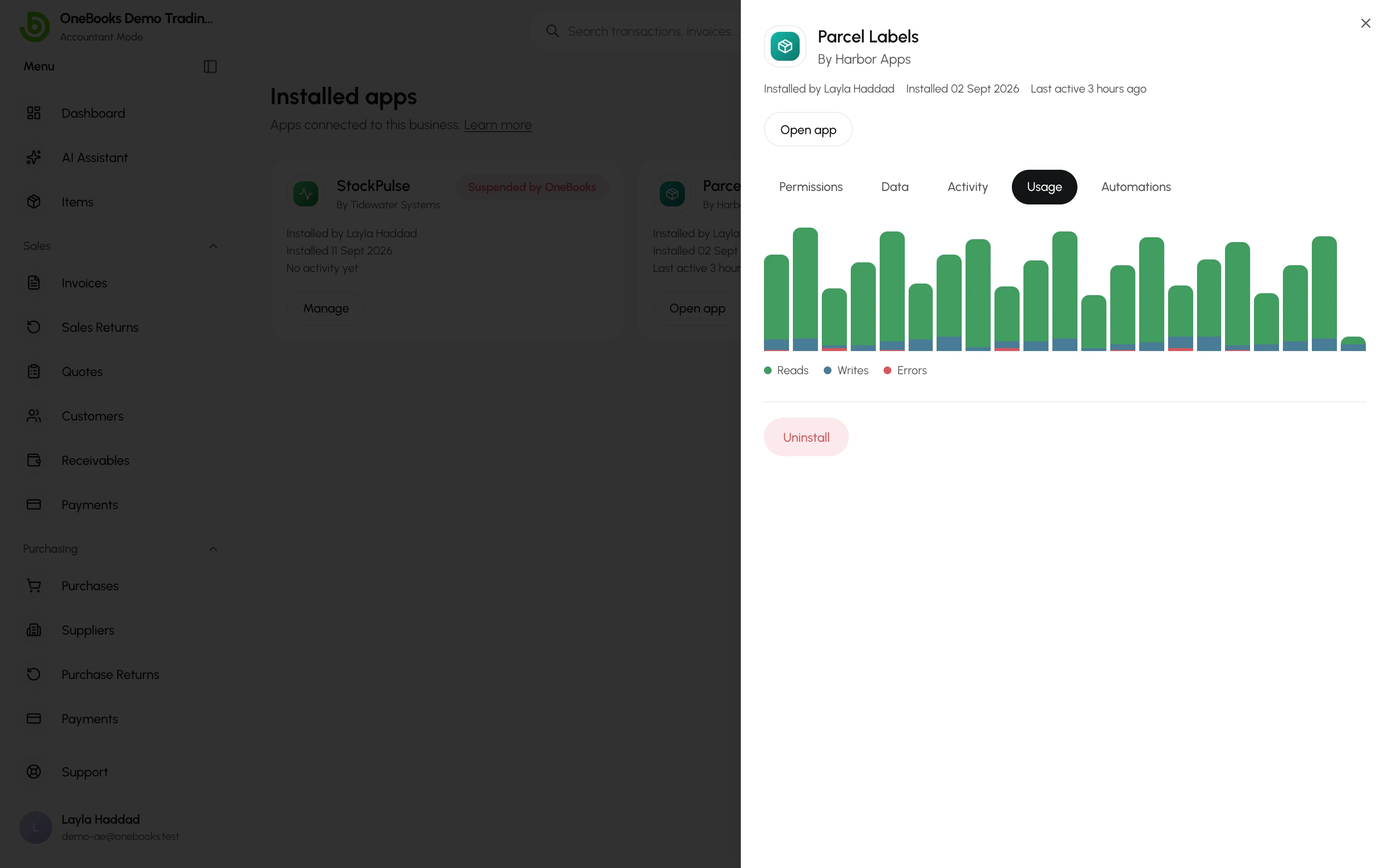
A day-by-day chart for the Last 30 days: Reads (data the app fetched), Writes (changes it made) and Errors (those calls that failed — for example because they needed a permission the app doesn’t have). No usage recorded yet. means the app hasn’t called OneBooks in that time.
Automations
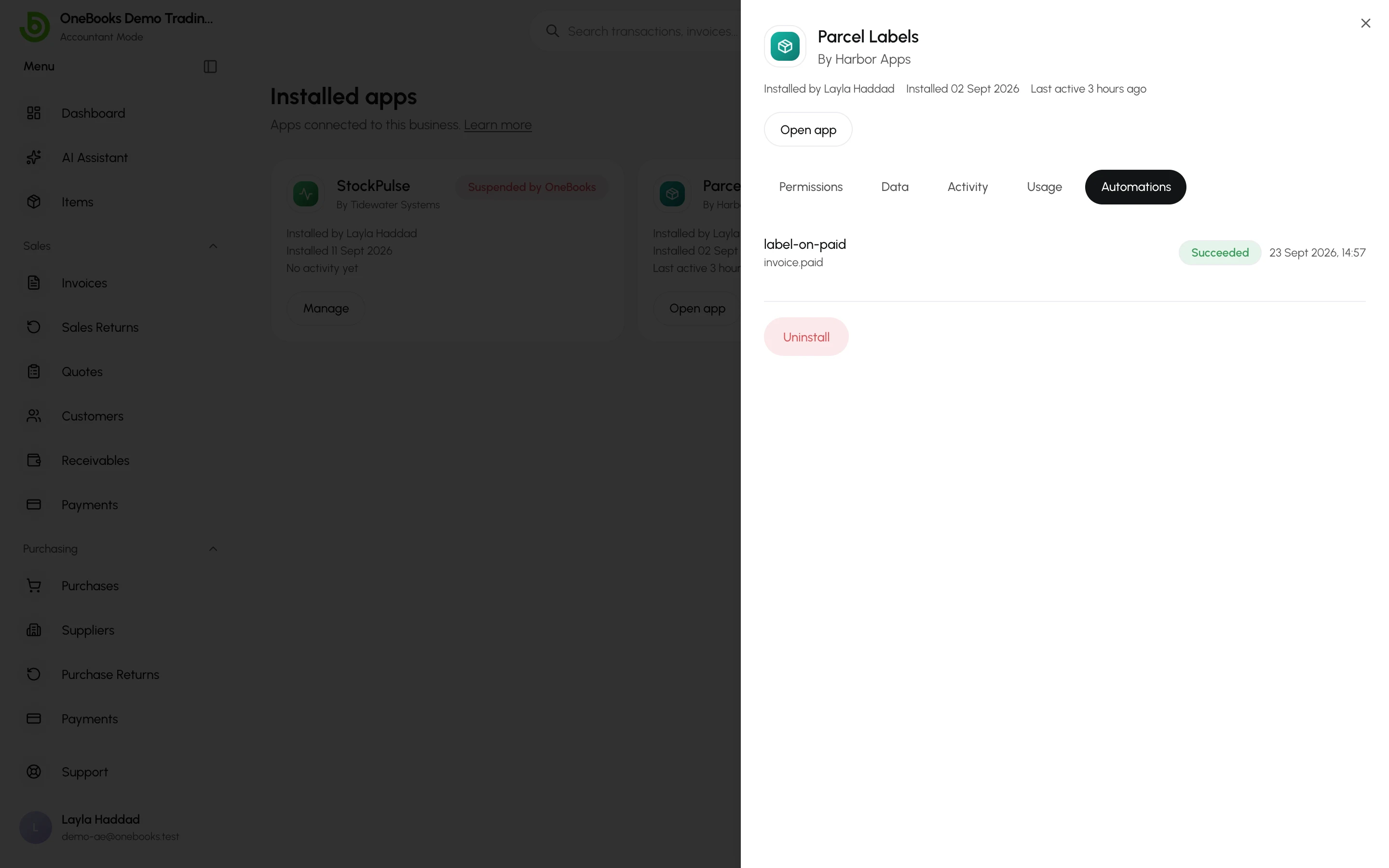
Section titled “Automations”The app’s 20 most recent background runs, each with the automation’s name, the event that started it (such as invoice.paid), its status and the time.
| Status | What it means |
|---|---|
| Queued | Waiting to run — including a run waiting to retry after an error. |
| Running | Running now. |
| Succeeded | Finished without errors. |
| Failed | Stopped with an error after its automatic retries. If this keeps happening, contact the developer with Support on the app’s listing. |
| Skipped | Not run — for example because the app reached its daily limit of runs for your business. |
No automation runs yet. means the app has no hosted automations, or none has been triggered yet.
Uninstall an app
Section titled “Uninstall an app”- Open the app’s drawer: select Manage on its card, or Manage app in the app’s menu.
- Select Uninstall at the bottom of the drawer.
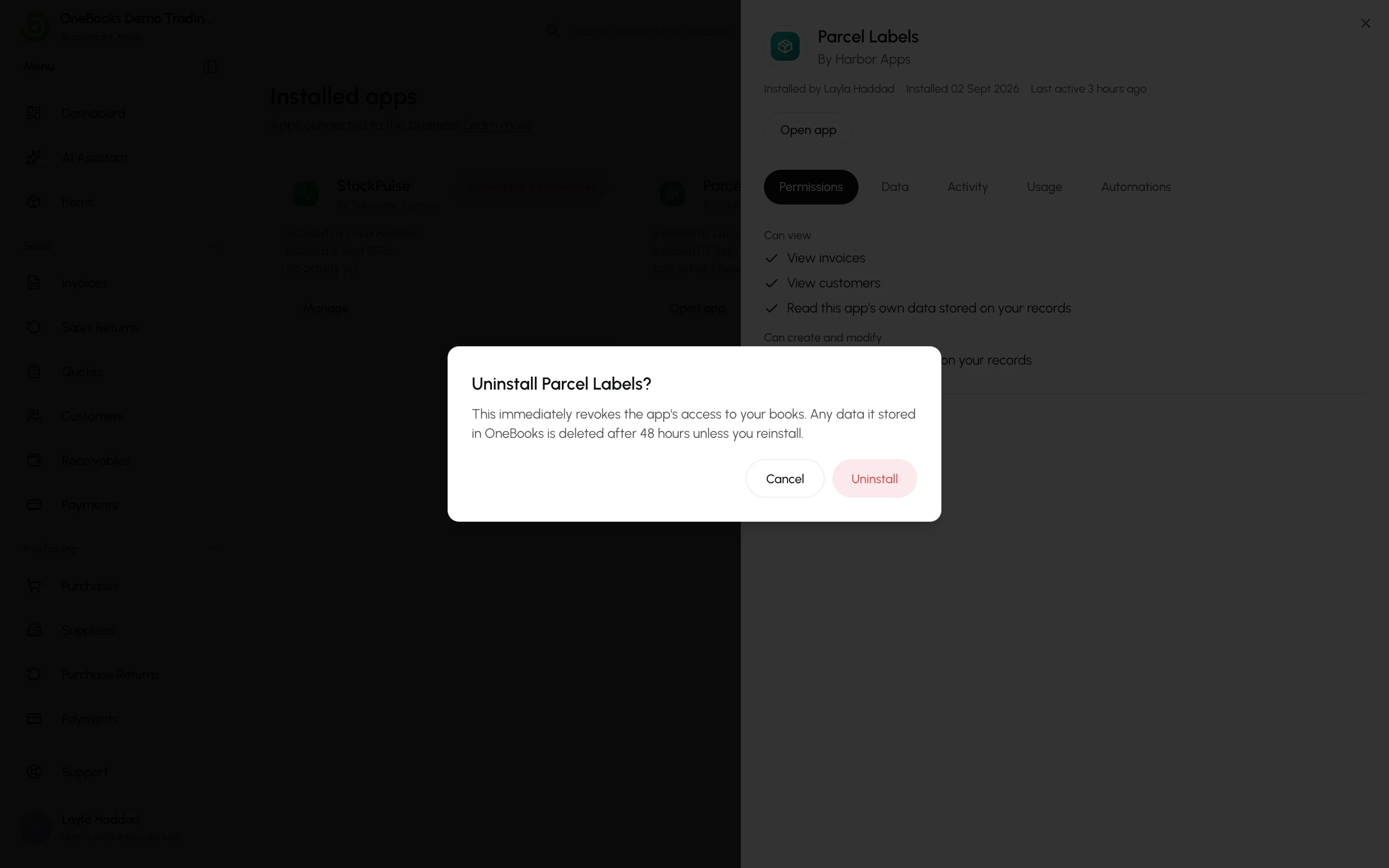
- Read Uninstall app name? and select Uninstall to confirm.
What uninstalling does
Section titled “What uninstalling does”- Immediately, the app loses all access to this business: every connection it had stops working, including any authorisation still in progress, and notifications waiting to be sent to it are dropped. Its sidebar row, Apps menu entries, cards and App data fields disappear, and its automations stop.
- What it already created stays. Invoices, customers, payments and anything else it created are ordinary records in your books; uninstalling never deletes or reverses them.
- After 48 hours, the data the app stored in OneBooks (its App data) is deleted, and the developer is told to delete everything they hold for your business. Reinstall within those 48 hours and nothing is deleted — the app picks up where it left off. After that, reinstalling starts afresh.
- Your business’s review of the app stays, and you can still edit or delete it.
Revoking a marketplace app on Apps → Integrations removes only your own authorisation; the app is uninstalled when nobody else in the business still has it authorised. Uninstall here removes it for everyone at once.
Suspended and unavailable apps
Section titled “Suspended and unavailable apps”OneBooks can suspend an app — for example over a security or policy problem — or suspend the account of the developer who makes it, which suspends that developer’s apps too. Either way the app shows as suspended and stops working immediately, in every business that has it:
- its connections to your books stop working, it receives no notifications and its automations don’t run;
- it can’t be opened: Open app disappears everywhere, its sidebar row, Apps menu entries, cards and App data fields are hidden, and its page shows Suspended by OneBooks — OneBooks has suspended this app, so it can’t be opened. You can still manage or uninstall it. — with a Manage button;
- it stays in Installed apps with the Suspended by OneBooks badge, and its data is kept.
You can still open its drawer, or uninstall it yourself. If OneBooks lifts the suspension, the app works again without being reinstalled.
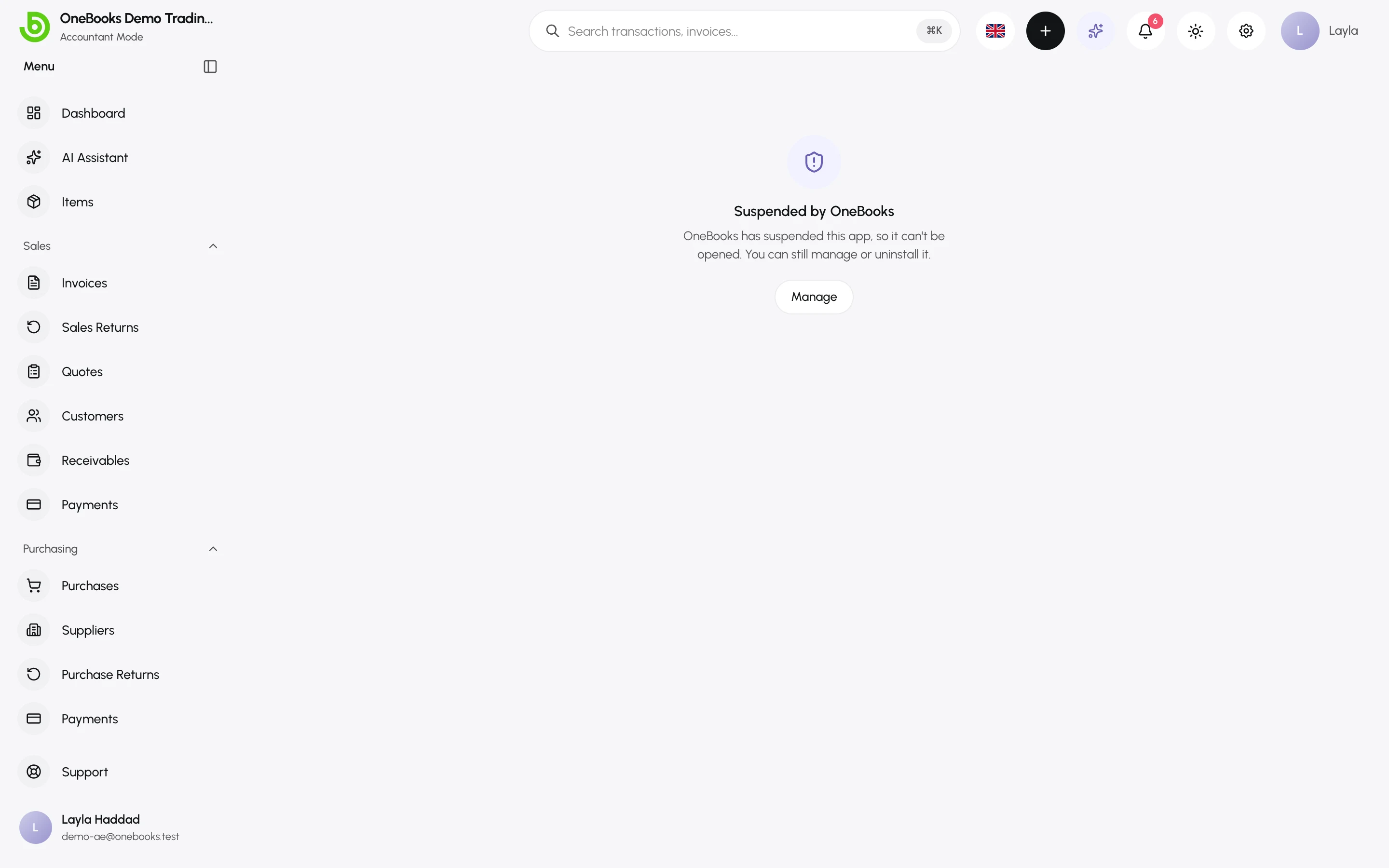
An app can also stop being available without any suspension — when its developer deletes or deactivates it. It stops working in the same way, but its badge and its page read No longer available instead of Suspended by OneBooks, and the page explains: Its developer no longer makes this app available, so it can’t be opened. You can still manage or uninstall it. Its data is kept, and you can still open its drawer or uninstall it.