

Apps are useful because they are constrained. Every rule on this page is enforced by OneBooks itself — not by trusting the developer to behave. Read it before you install an app, or whenever you want to know what an installed app can and can’t do.
Reviewed before they’re listed
Section titled “Reviewed before they’re listed”OneBooks reviews an app before businesses can install it, and reviews its listing before it appears in the Marketplace. Every listed app must also accept OneBooks’ uninstall and data-deletion notices — a listing can’t be submitted without them. A listing that fails review, or an app OneBooks has suspended — directly or by suspending its developer’s account — is never shown and can’t be installed; a suspended app also stops working at once in every business that has it (see Manage installed apps).
Review is a check, not a guarantee. Before you install, read the app’s permissions, its Where your data goes section and the developer’s Privacy policy.
Least-privilege permissions
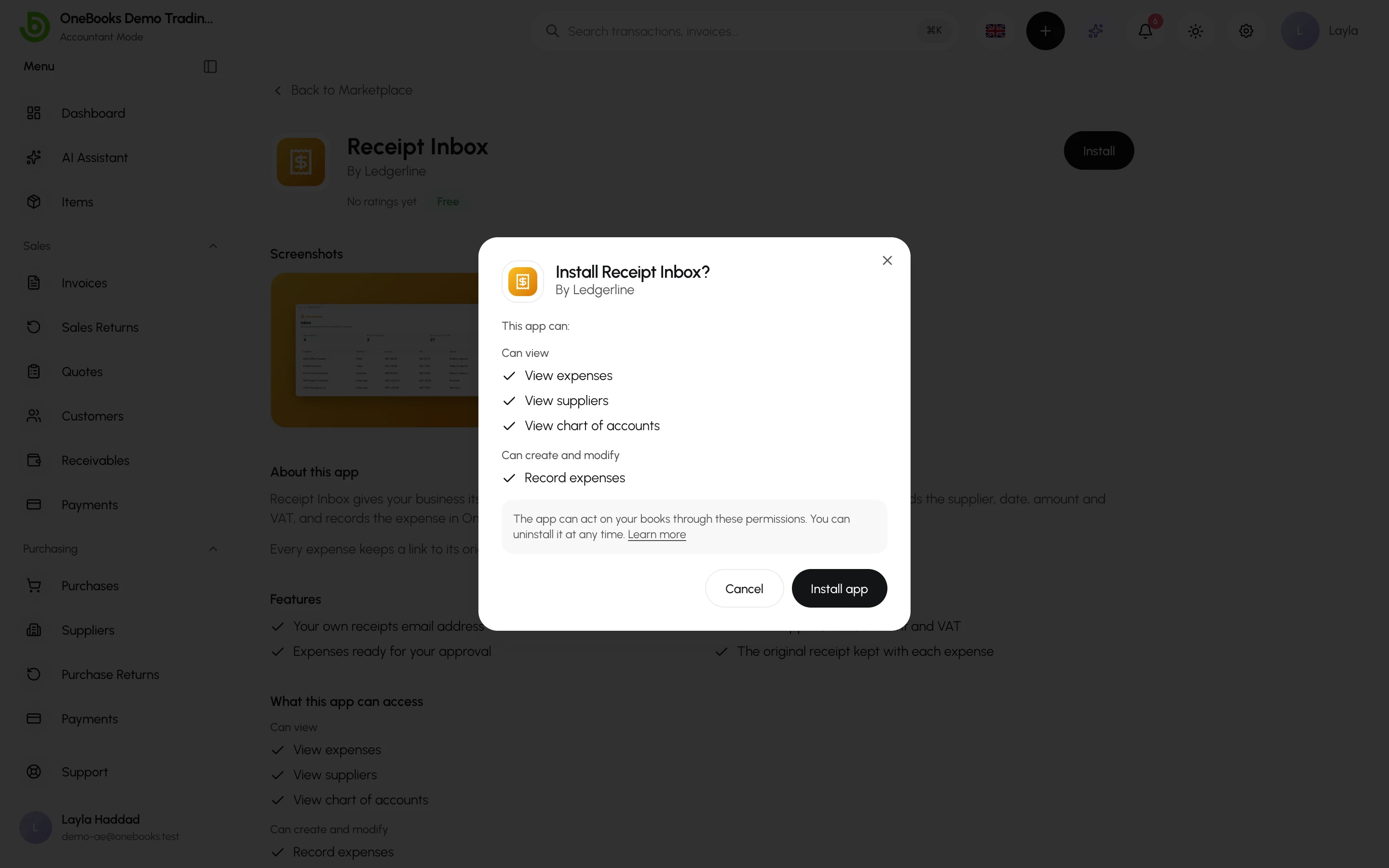
Section titled “Least-privilege permissions”An app gets only the permissions you saw and approved when you installed it, listed in plain words under Can view and Can create and modify. They are checked on every request for as long as the app stays installed, and never widened quietly: if a new version needs more, someone in your business has to approve the addition. There is no permission an app can ask for to manage your team, roles, plan or billing, or to see your password.
Your role still applies
Section titled “Your role still applies”Whatever an app does while you use it is done as you, so your own role limits it: a viewer who opens an app gets read-only results even if the app itself may write. And an app never goes beyond the permissions your business granted it, whoever is using it.
Apps never see other businesses
Section titled “Apps never see other businesses”Every connection an app has is bound to one business. Its access covers only the business you installed it into — never any other business you or your teammates work in. Switching your own active business ends a connection you authorised until you reconnect and approve it again for the new business.
Embedded screens are isolated
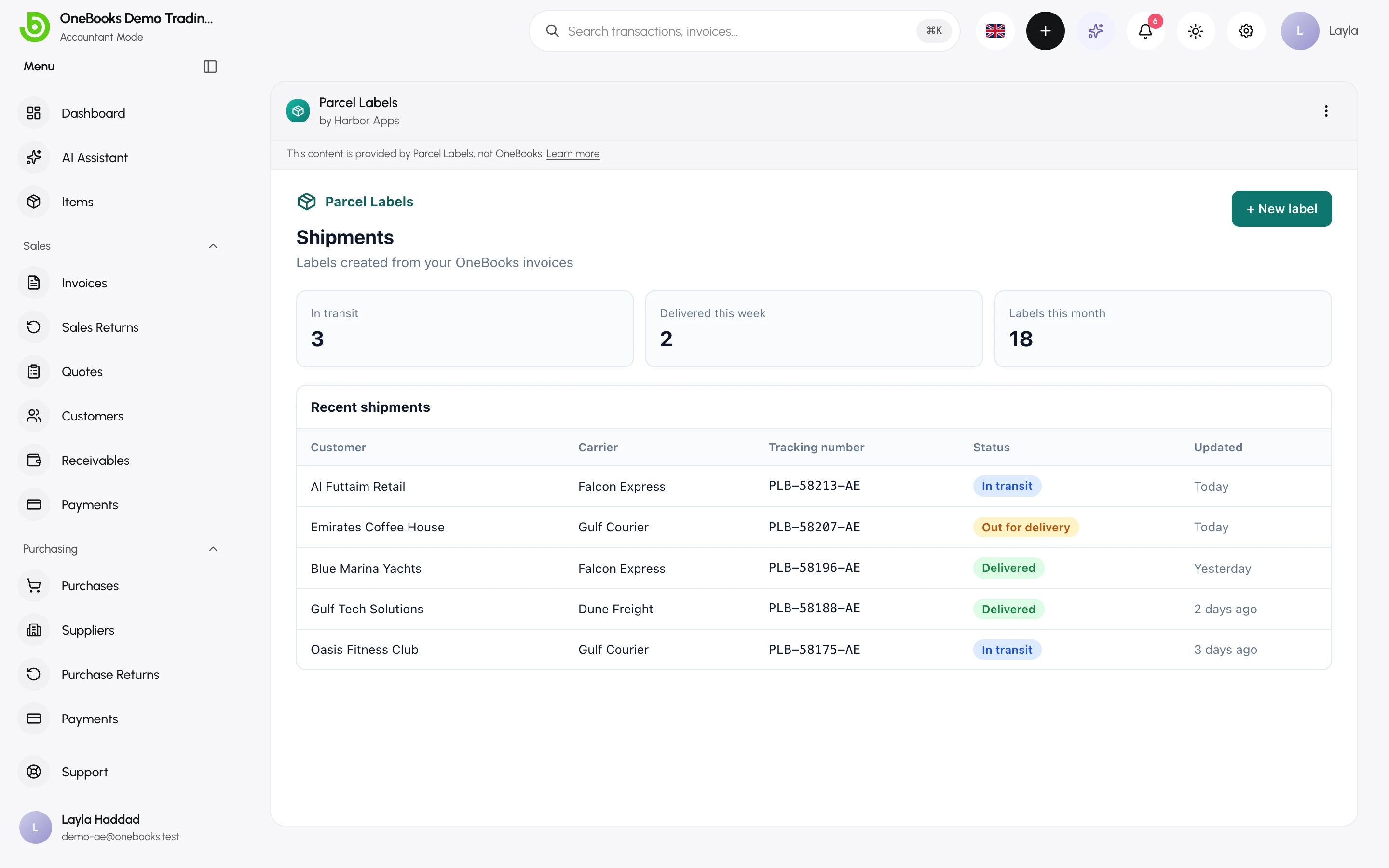
Section titled “Embedded screens are isolated”An app with its own screen runs in an isolated, sandboxed frame loaded from the developer’s own secure (https) address; OneBooks refuses to show one from any other kind of address. Full pages and dialogs always show the app’s registered name and developer above the frame, with the note This content is provided by app name, not OneBooks.; cards on a record carry the line Provided by app name (developer), not OneBooks. An app can’t change that name, so it can’t pass itself off as OneBooks: a title it sets for itself only ever appears next to its registered name, never in its place.
From inside its frame, an app cannot:
- read anything outside the frame — the rest of your screen, your OneBooks session, cookies, passwords or other tabs;
- send the OneBooks window to another website;
- act with more access than its permissions and your role allow.
It can only ask OneBooks for a short list of things: show a brief message, open a OneBooks page such as an invoice, ask you to confirm something in a OneBooks dialog marked Requested by app name., or ask you to pick a customer, supplier, item or invoice — only a kind of record it can already view, and it learns only what you pick. To prove who you are, OneBooks gives the app a pass that expires after one minute; the app never receives your password or your session.
Hosted automations run in a sandbox
Section titled “Hosted automations run in a sandbox”Some apps include hosted automations — small programs that run when something happens in your books, such as an invoice being paid. They run in an isolated sandbox that OneBooks operates, apart from OneBooks’ own application and database and not on the developer’s servers, under strict limits on running time, size and outside calls. Each run gets a pass that carries only the app’s permissions, expires within five minutes and is withdrawn when the run ends.
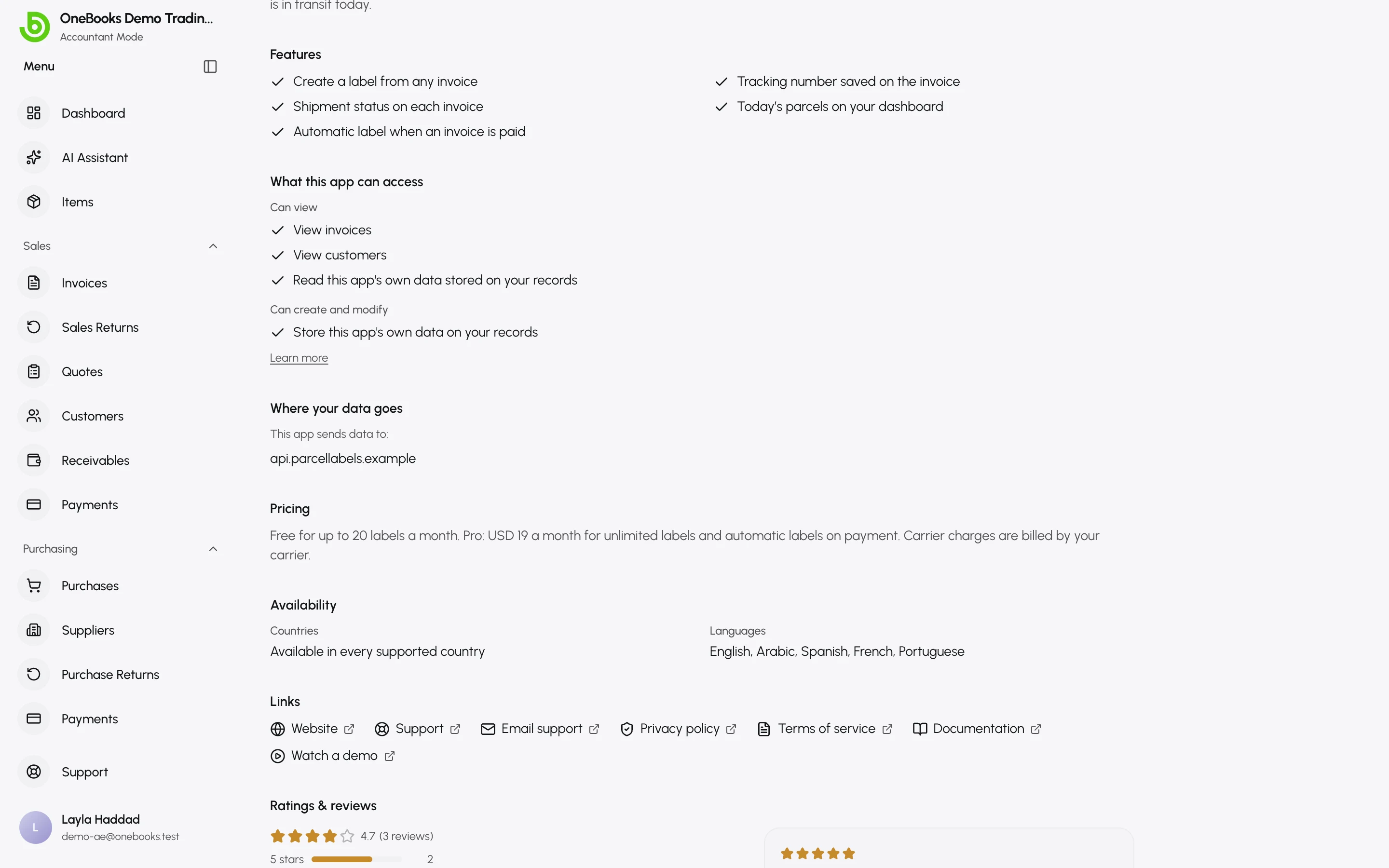
An automation can reach only the OneBooks API and the outside destinations its developer has declared — shown as Where your data goes on the listing before you install, and in the Data tab of the app’s drawer afterwards. A request to anywhere else is blocked. The list always reflects the developer’s current declarations, so check it whenever you want to know where an app’s automations can send data.
App data never changes your books
Section titled “App data never changes your books”Fields an app keeps on your records (App data) are stored apart from your accounting. They never change totals, tax, journal entries or reports, and never appear on printed documents or e-invoices. To change your books, an app goes through the same checks you do: creating an invoice needs the permission to create invoices, and the invoice gets the same numbering, tax, period locks and journal entry as one you create yourself.
Every change is attributed
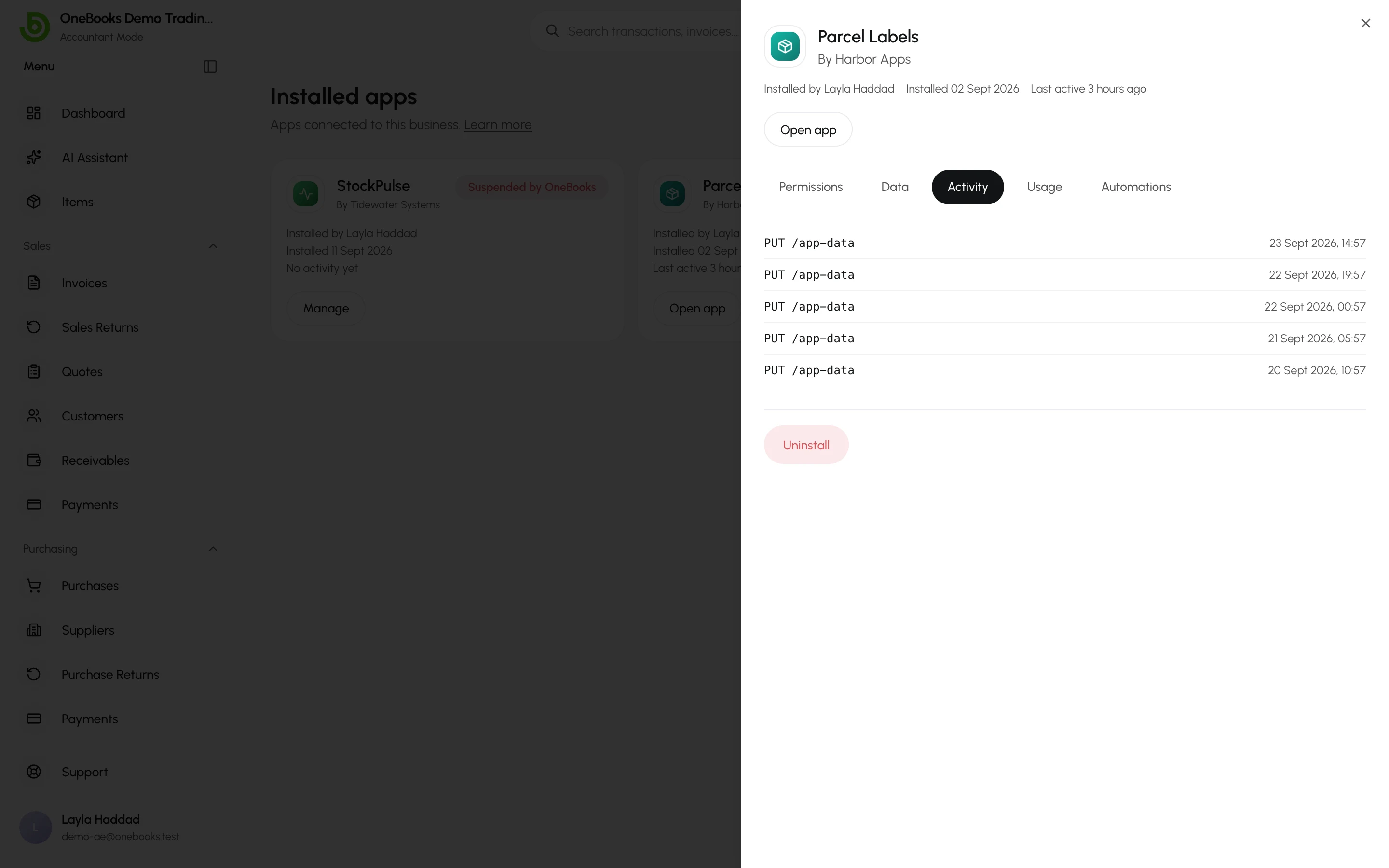
Section titled “Every change is attributed”Anything an app creates or changes is recorded as the app’s, not as an anonymous change — visible in its Activity tab and, like every other change to your books, traceable to journal entries that are never silently altered.
What apps can never do
Section titled “What apps can never do”- See or change another business’s books.
- Go beyond the permissions you approved, or beyond your role while you use them.
- Manage your team, roles, plan or billing, or see your password.
- Change totals, tax or the ledger through App data.
- Run code inside OneBooks’ own application or database.
- Show a screen without its name and developer, or from an insecure address.
- Keep any access after you uninstall them.
Uninstalling deletes its data
Section titled “Uninstalling deletes its data”Uninstalling revokes the app’s access immediately — including any authorisation still in progress — and drops notifications that hadn’t been sent to it yet. What the app created in your books stays. Any data it stored in OneBooks is deleted 48 hours later unless you reinstall first, and at that point the developer is told to delete everything they hold for your business too. If a customer’s or supplier’s personal data is erased from OneBooks, apps that can view that customer or supplier are told to erase that data as well.
Report a problem
Section titled “Report a problem”- Something the app does — a bug, a question or its pricing: contact the developer with Support or Email support on the app’s listing.
- A security or policy concern — an app asking for more than it needs, posing as OneBooks or sending data somewhere unexpected: tell OneBooks. Open Support → New Request, choose Technical, and include the app’s name, what happened and when — or write to [email protected]. See Get support.
- To stop an app straight away, uninstall it — you can reinstall it later.